Windows-Fundamentals
Task 1 - Introduction to Windows
Question
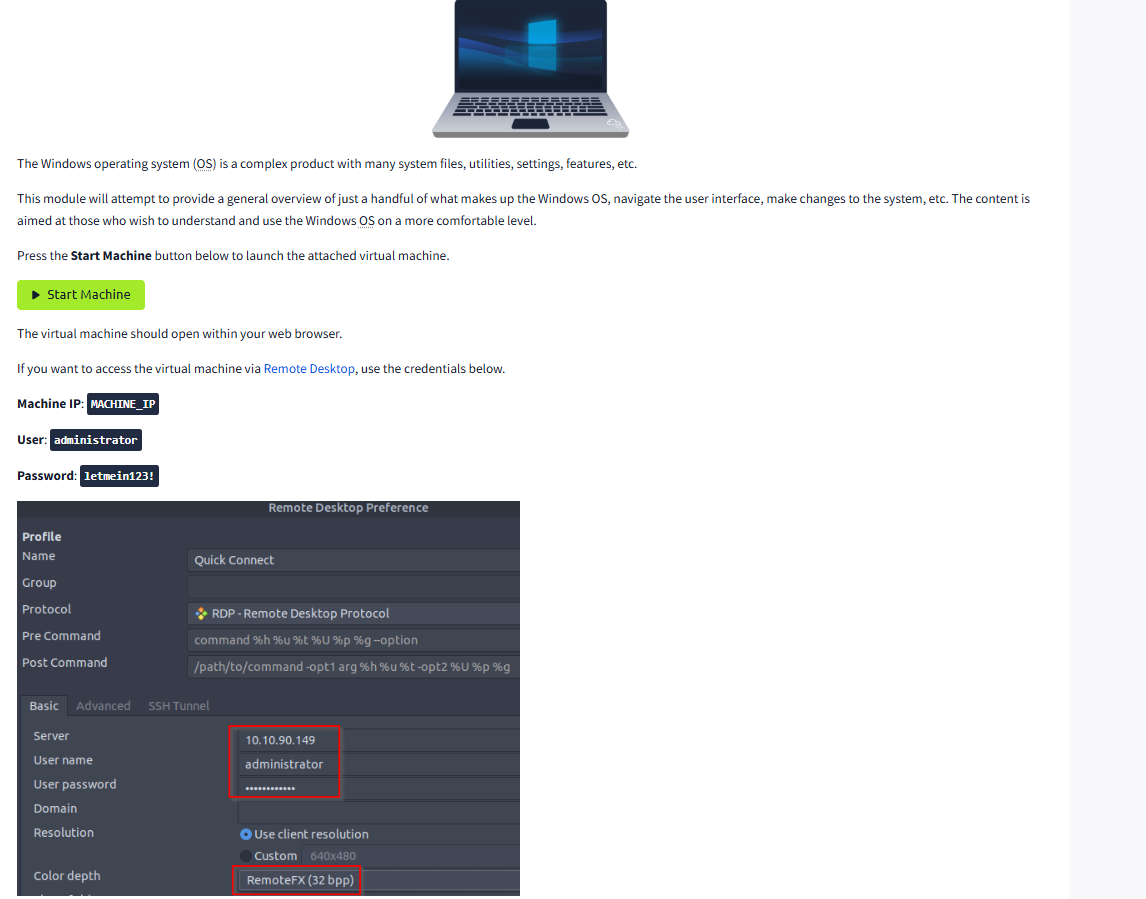
Read above and start the virtual machine

Task 2 - Windows editions
The Windows operating system has been around since 1985 and is now the most widely used system on personal and work computers. Its popularity has made it a big target for hackers and malware.
Windows XP was one of the most beloved versions. However, when Microsoft announced a newer version called Windows Vista, people had high hopes, but it had too many problems, and users didn’t like it. Microsoft quickly started to phase it out.
 When Microsoft announced they would stop supporting Windows XP, many businesses and hospitals panicked because they relied heavily on it. They needed to upgrade, but this required testing their devices and systems to make sure they would work with Windows 7.
 Companies faced a lot of pressure to find products compatible with Windows 7 before XP was officially retired, leading to a chaotic time for many.
Windows 7 was stable, but like XP, it too had an end date for support, which left users eventually needing a new upgrade. Windows 8 and Windows 8.1 were then released, but they didn’t gain much popularity and were also phased out relatively quickly.
After that came Windows 10, which is now widely used. Windows 10 has two main versions for regular users: Home and Pro, which vary in features for different types of users.
 For servers (computers that manage and store data for multiple users), the main Windows version is Windows Server 2019. The attached virtual machine (VM) runs on this server version, specifically the Windows Server 2019 Standard edition.
Microsoft has been improving Windows over the years, making it easier to use and more secure. For example, they set a retirement date for Windows 10 support as October 14, 2025, so users know when they’ll need to upgrade.
As of October 5, 2021, Windows 11 became the latest version available for regular users.
Question
What encryption can you enable on Pro that you can’t enable in Home?(research)
Click to see Answer
BitLockerTask3 - The Desktop (GUI)
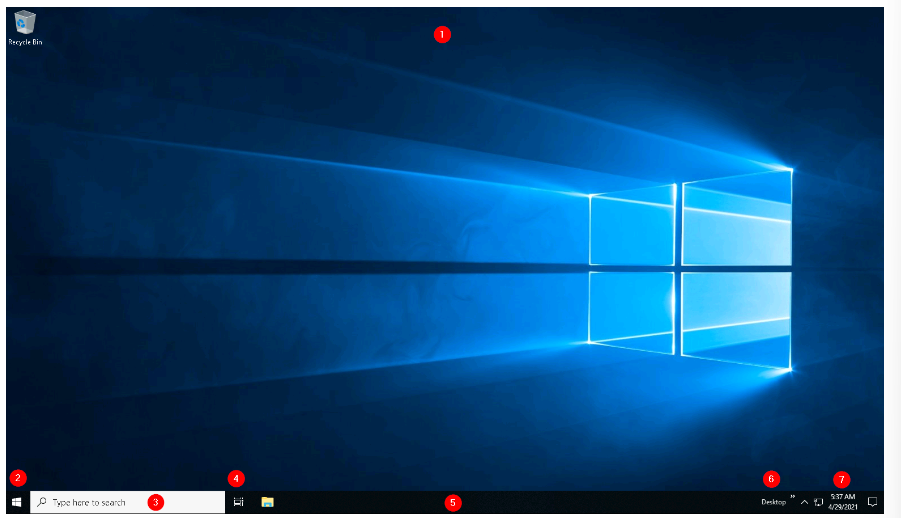
These are the Components of the windows OS which most of us use. The numbers on the screen that are labbled with with numbers are identified below:
- The Desktop
- Start Menu
- Search Box (Cortana)
- Task View
- Taskbar
- Toolbars
- Notification Area
Desktop
The desktop is like the home screen on your computer, where you can place shortcuts to programs, files, and folders so you can open them quickly. These icons can either be neatly arranged in alphabetical folders or scattered around without much order. Either way, the desktop is set up to make things you need easy to access.
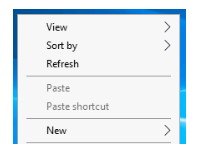
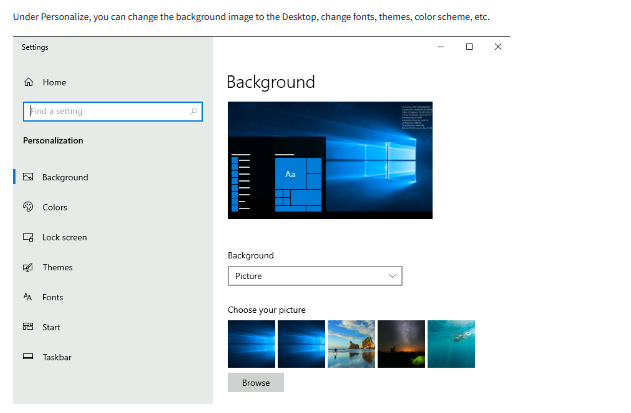
You can also change how the desktop looks to fit your style. Right-clicking on the desktop brings up a menu with options to adjust the icon size, organize them, copy or paste things, or create new items like folders, shortcuts, or notes directly on the desktop. The desktop is like the home screen on your computer, where you can place shortcuts to programs, files, and folders so you can open them quickly. These icons can either be neatly arranged in alphabetical folders or scattered around without much order. Either way, the desktop is set up to make things you need easy to access.
You can also change how the desktop looks to fit your style. Right-clicking on the desktop brings up a menu with options to adjust the icon size, organize them, or create new items like folders, shortcuts, or notes directly on the desktop.
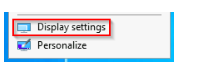
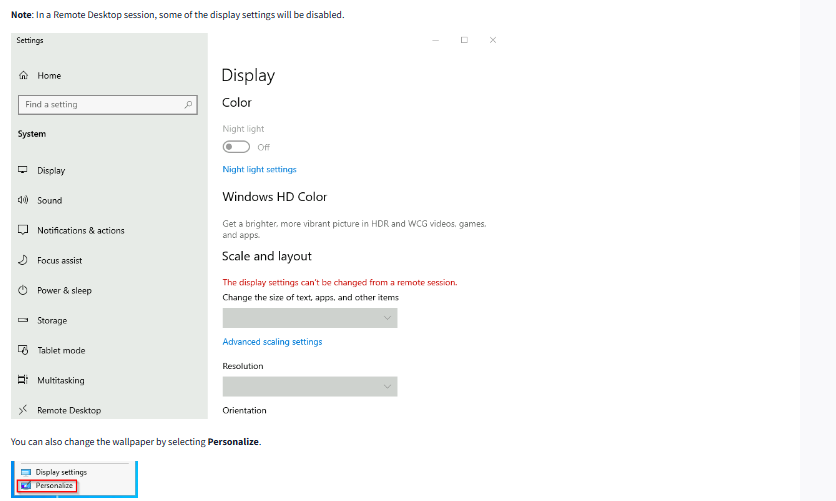
You can also adjust the screen display size
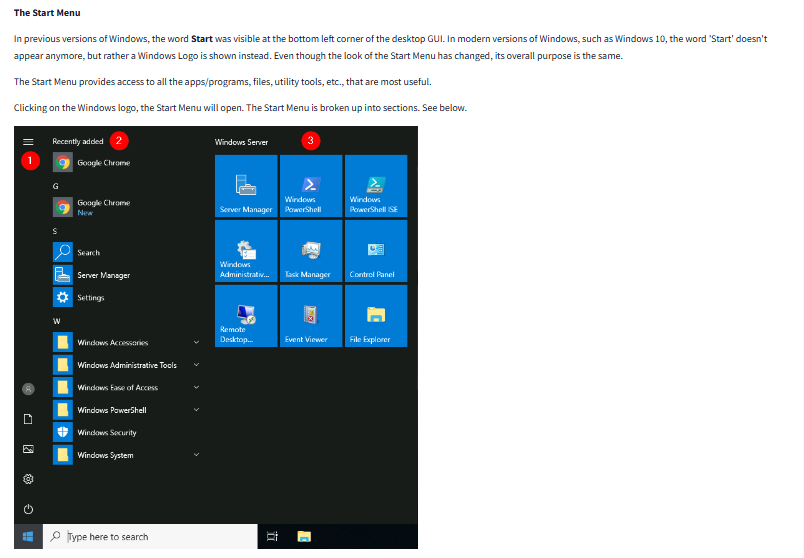
Start Menu
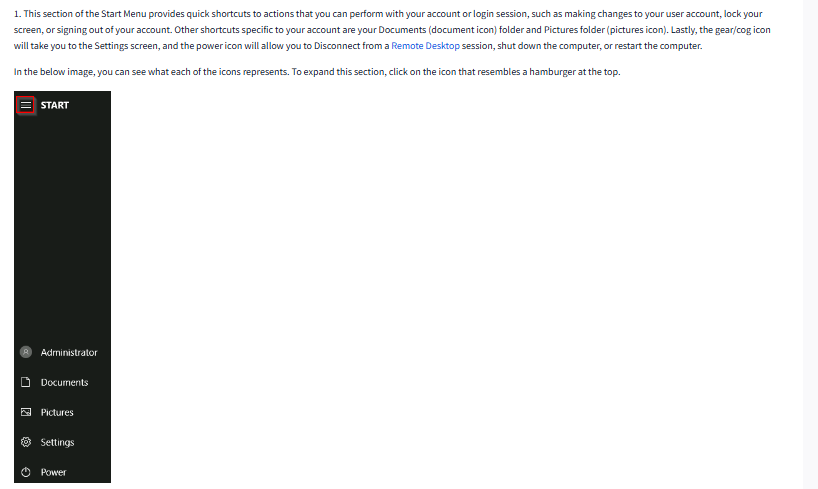
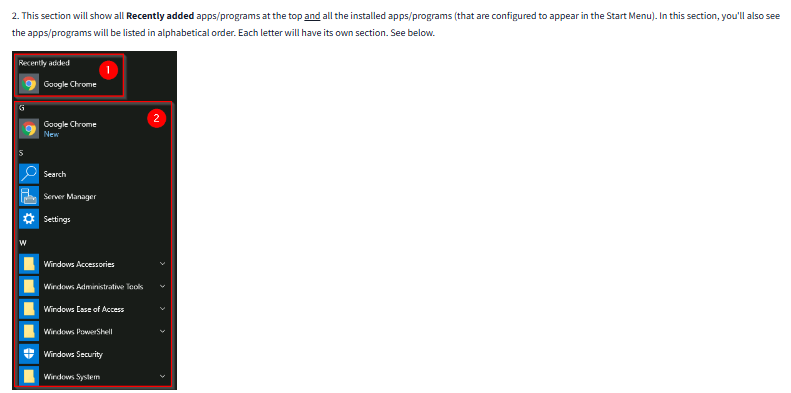
The Start Menu is like the central hub of your computer. When you click the Windows icon in the bottom-left corner, it pops up, showing you a list of apps, recent files, and options to shut down or restart. It’s where you go to find and open programs, settings, or anything else on your computer.
Search Box(cortana)
This is a search tool, often found next to the Start Menu. You can type anything in here—like the name of an app or a question—and it will help you find it on your computer or even search the internet. Cortana is the voice assistant linked to this feature, so you can also ask questions or give commands by voice.
Task View
Task View is like a bird’s-eye view of everything you have open. If you click on it (often found as an icon on the taskbar), you’ll see a grid of all your open windows and programs. You can switch between them easily, and it even lets you create separate “desktops” to organize different tasks.
Taskbar
The Taskbar is the bar that usually runs along the bottom of the screen. It shows you icons for programs you’ve pinned for easy access and any apps you currently have open. You can quickly switch between apps by clicking on them here.
Toolbars
Toolbars are additional bars that you can add to the Taskbar. They provide shortcuts to things like folders, websites, or specific features. For example, if you add the “Links” toolbar, you can access favorite websites with a click.
Notifications Area
Also called the “System Tray,” this area is on the right side of the Taskbar. It shows small icons for background apps (like Wi-Fi, volume, and battery) and notifications, like reminders or system updates. It’s where you can quickly check the status of these features or adjust settings without opening full windows.
For the sake of the progess lets review features of windows 10. If you’d like to study the features of desktop of windows 11. Its here
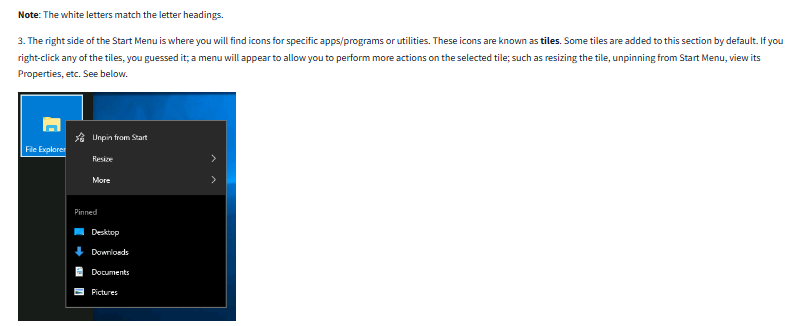
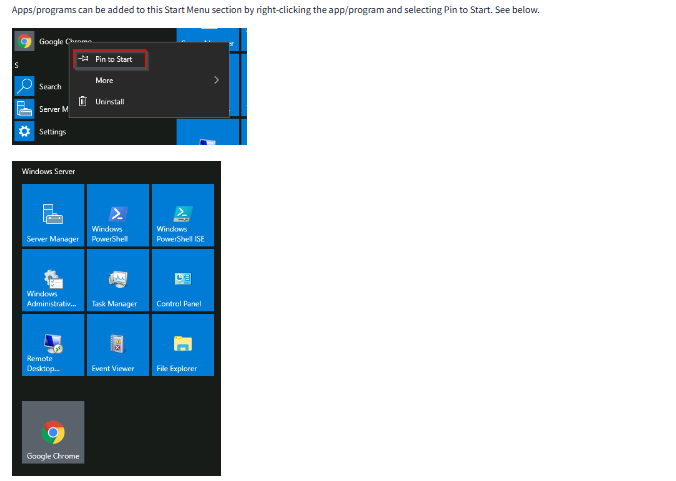
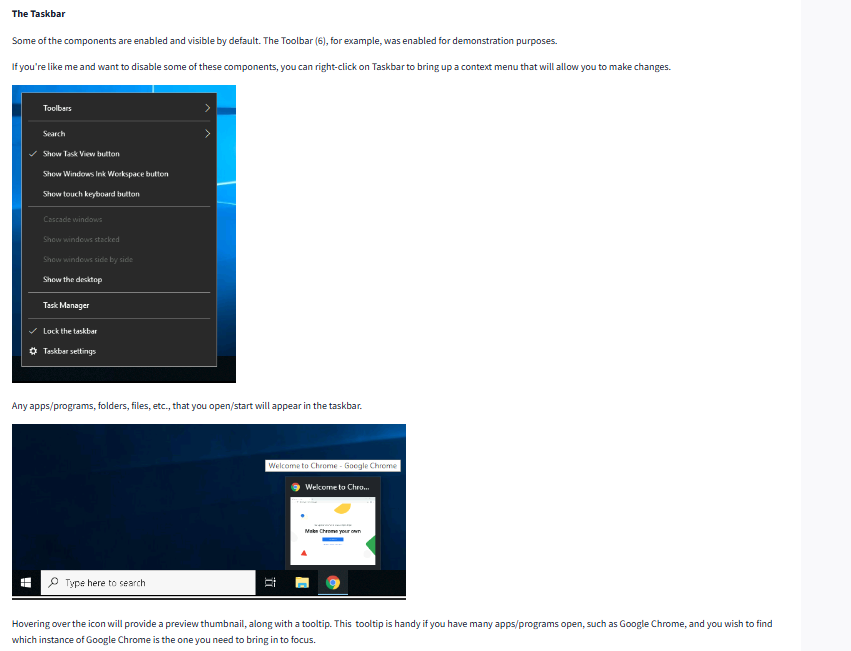
Question
Which selection will hide/disable the Search box?((Research the selection for windows 10 for the questions. Windows have good guides))
Click to see Answer
HiddenQuestion
(Research the selection for windows)
Which selection will hide/disable the Task View button?
Click to see Answer
Show Task View buttonQuestion
Besides Clock and Network, what other icon is visible in the Notification Area?
Click to see Answer
Action CentreTask 4 - The File System
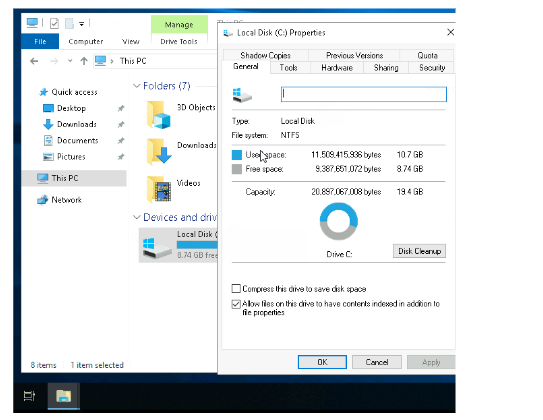
Windows uses a type of file system called NTFS (New Technology File System) to manage how files are stored and accessed on your computer. Think of a file system like an organizational method that keeps track of where all your files and folders are located on your hard drive.
 A Bit About Older File Systems
Before NTFS, older systems like FAT16 and FAT32 (File Allocation Table) were common. These older systems are still used in things like USB drives and SD cards because they’re simple and compatible with many devices. However, they don’t have all the advanced features needed for running a modern computer smoothly.
A Bit About Older File Systems
Before NTFS, older systems like FAT16 and FAT32 (File Allocation Table) were common. These older systems are still used in things like USB drives and SD cards because they’re simple and compatible with many devices. However, they don’t have all the advanced features needed for running a modern computer smoothly.
Why NTFS is Better for Your Computer NTFS was developed to fix some of the limitations of older systems. It includes a few powerful features:
Handles Large Files: With NTFS, you can store files larger than 4GB (important for things like videos or large programs).
Permissions: NTFS allows you to control who can access certain files or folders, which is useful for privacy and security.
These Permissions are:
Full control
Modify
Read & Execute
List folder contents
Read
Write
Built-in Recovery: If something goes wrong (like a power failure), NTFS can use a log file to repair or recover data. This helps prevent data loss or corruption.
File Compression and Encryption: NTFS has built-in tools to compress files to save space and encrypt files to protect sensitive information.
How to Check Your File System
To find out what file system your computer is using, go to File Explorer, right-click on the drive where Windows is installed (usually the C: drive), and choose Properties. Under “File system,” you’ll likely see NTFS if you’re running a recent version of Windows.
Task 5 - Windows\System32 Folders
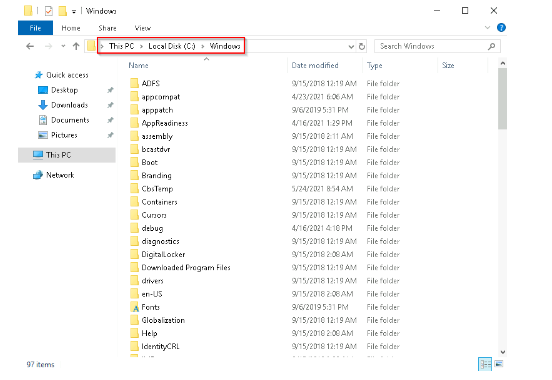
The C:\Windows folder on a computer is where the Windows operating system files are stored. It’s like the “control center” where the operating system keeps everything it needs to run your computer smoothly.
Usually, this folder is located in the “C” drive (that’s why it’s called C:\Windows), but it could be on a different drive if Windows is set up that way.
Now, when you need to find this Windows folder, instead of looking for it in the exact location every time, you can use a shortcut called a system environment variable. In this case,%windir% is the variable that tells your computer, “This is where the Windows folder is, no matter which drive or folder it’s actually in.” You can think of it like a bookmark for the location of your Windows files.
Environment variables store settings or pieces of information that the operating system and other programs can use to find important places or settings on the computer. For example, environment variables can help the system know where to find temporary files, how many processors it has, or where specific program files are located.
Inside the Windows folder, there are many other folders that contain essential parts of the operating system, like files for updates, drivers, and system settings, all organized to keep the system running smoothly. The System32 folder is like the “heart” of the Windows operating system. It contains super-important files that Windows needs to work correctly.
If you delete or mess with files in System32 by accident, it can seriously harm your computer, to the point where it might not start up or function properly anymore. So, unless you’re absolutely sure of what you’re doing, it’s best to leave this folder alone. Think of it as the part of the system that you shouldn’t touch to keep everything running smoothly.
Question What is the system variable for the Windows folder?
Click to see Answer
%windir%Task 6 - User Accounts,Profiles and Permissions
On a Windows computer, there are usually two types of user accounts:
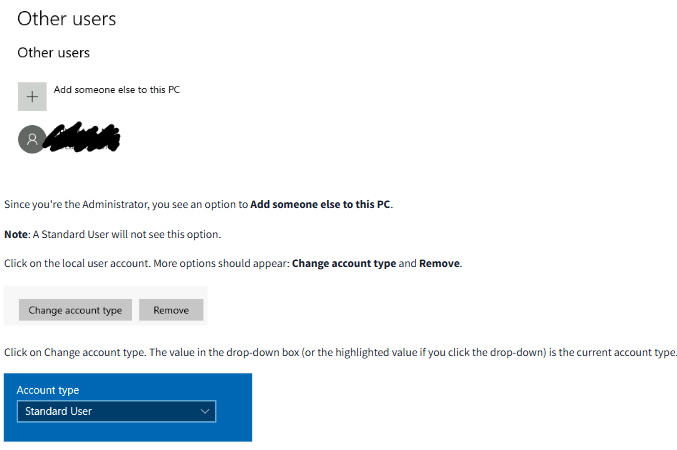
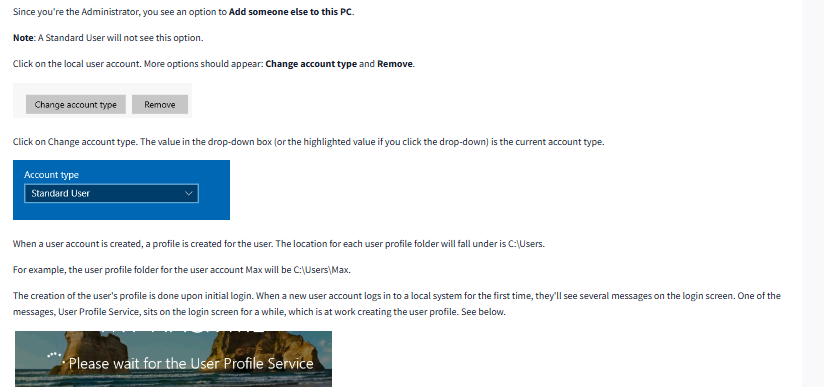
Administrator - This type of account has full control over the computer. An Administrator can make big changes, like adding or removing users, changing system settings, and installing programs. They can do just about anything on the system.
Standard User - This account has limited access. Standard users can only make changes to their own files and folders but aren’t allowed to install programs or change system settings.
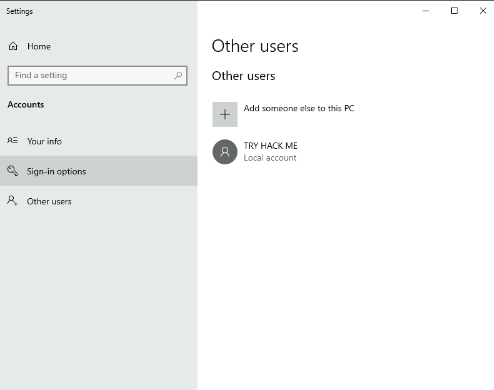
Since you’re logged in as an Administrator, you have full access to make changes to the system. If you want to see a list of all user accounts on the computer, you can go to the Start Menu, type in Other Users, and click on the shortcut that shows up. This will take you to the settings page where you can view or manage other user accounts.
On windows you can check out windows versions to click the start menu then type other user. This shoudld show system settings > other users
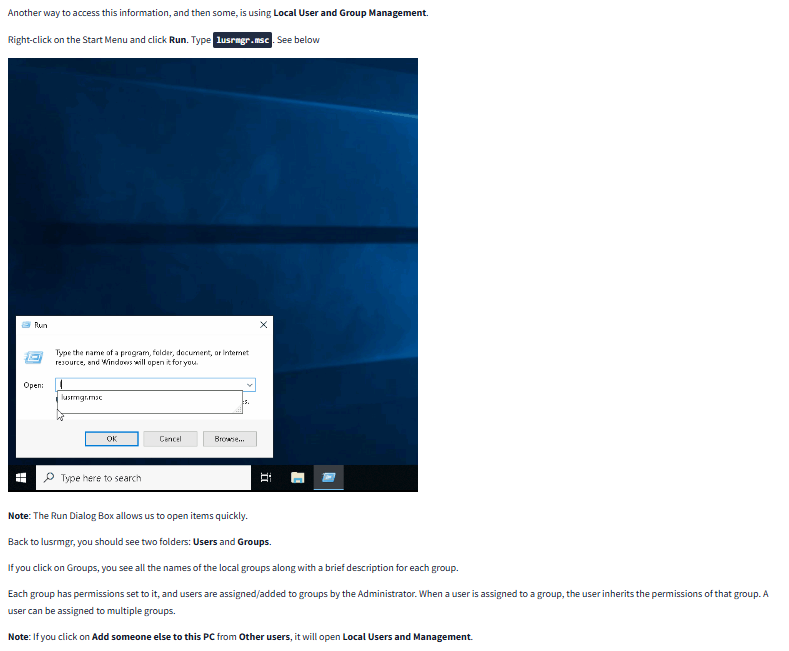
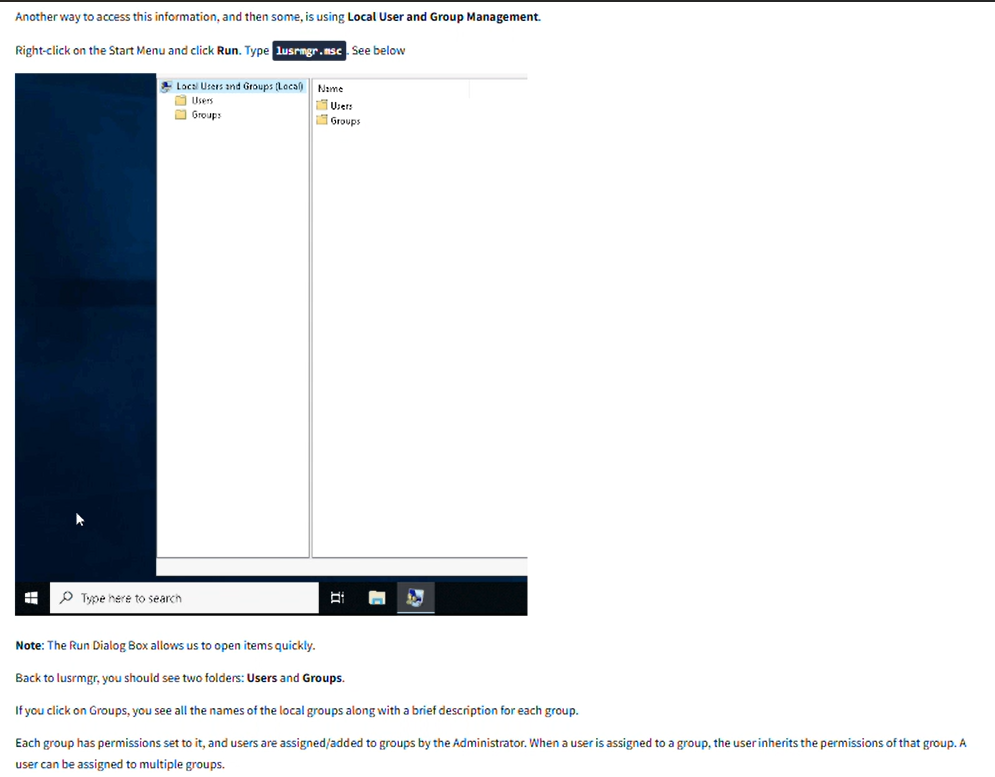
The otherway is running lusrmgr.mrc
Question
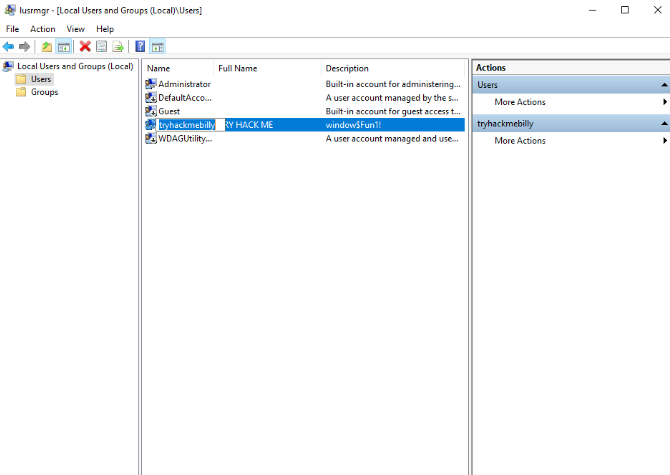
What is the name of the other user account?
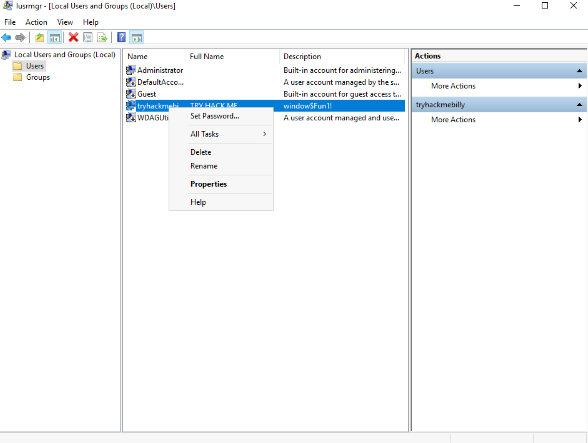
First step we run the lusrmgr.msc to see the availble users.
Second we view the users available and find out the name of the user
Click to see Answer
tryhackmebillyQuestion
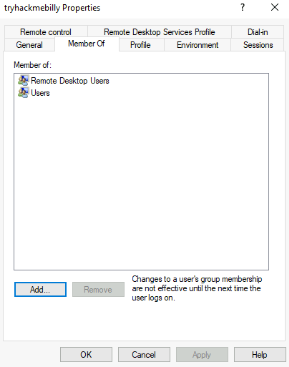
What groups is this user a member of?
First Step required. Right click on user and scroll to properties
Second step click on “member of” to view group
Click to see Answer
Remote Desktop Users,UsersQuestions
What built-in account is for guest access to the computer?
Click to see Answer
GuestQuestions
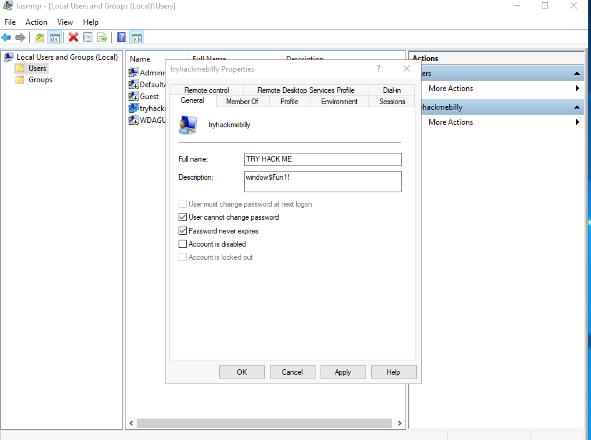
What is the account description?
As shown previously, go to the properties and you will see the descrition in the general tab
Click to see Answer
window$Fun1!Task 7 - User Accounts Control
Most home users are logged into their Windows computers with a type of account that has “administrator” privileges. This type of account allows them to make significant changes to the system—such as installing programs or changing system settings.
However, users don’t actually need these elevated permissions for everyday tasks, like browsing the internet or writing documents. The issue with always using an administrator account is that it makes the system more vulnerable. If malware (malicious software) infects the system while logged in as an administrator, it can cause much more damage because it has the same privileges as the user, allowing it to make harmful changes to the computer.
To help protect against this, Microsoft created a feature called User Account Control (UAC). UAC was introduced with Windows Vista and has been included in every version since. UAC works by temporarily limiting the privileges of administrator accounts. When an administrator logs in, they don’t automatically have full access to make system changes. If they try to do something that requires higher permissions—like installing software—the system will prompt them with a UAC alert. The user then has to confirm they want to allow the action, which gives them full privileges just for that specific task.
However, UAC does not apply to the built-in administrator account in Windows, which always has elevated privileges without requiring UAC confirmation. When you look at the Security tab for a program or file, you can see which users or groups have permission to access it. A standard user (one without administrative privileges) often won’t be listed, meaning they don’t have the same level of access to change the file or settings as an administrator would.
Question
What does UAC mean?
Click to see Answer
User Account ControlTask 8 - Settings and the Control Panel
In Windows, there are two main places where you can adjust system settings: the Settings menu and the Control Panel.
The Control Panel is the older, more traditional tool that has been around for a long time. It lets you make changes to the system, like adding a new printer, uninstalling programs, or adjusting hardware settings. It’s a central hub where you can find almost everything needed to control how the computer works.
The Settings menu is a newer, more simplified version of the Control Panel, designed to be easier to navigate, especially for touchscreen devices. It includes many of the same options as the Control Panel but is more streamlined and user-friendly.
Both the Control Panel and the Settings menu allow you to change how your computer behaves and looks, but Microsoft has been slowly moving more options into the Settings menu
Question
In the Control Panel, change the view to Small icons. What is the last setting in the Control Panel view?
Click to see Answer
Windows Defender FirewallTask 9 - Task Manager
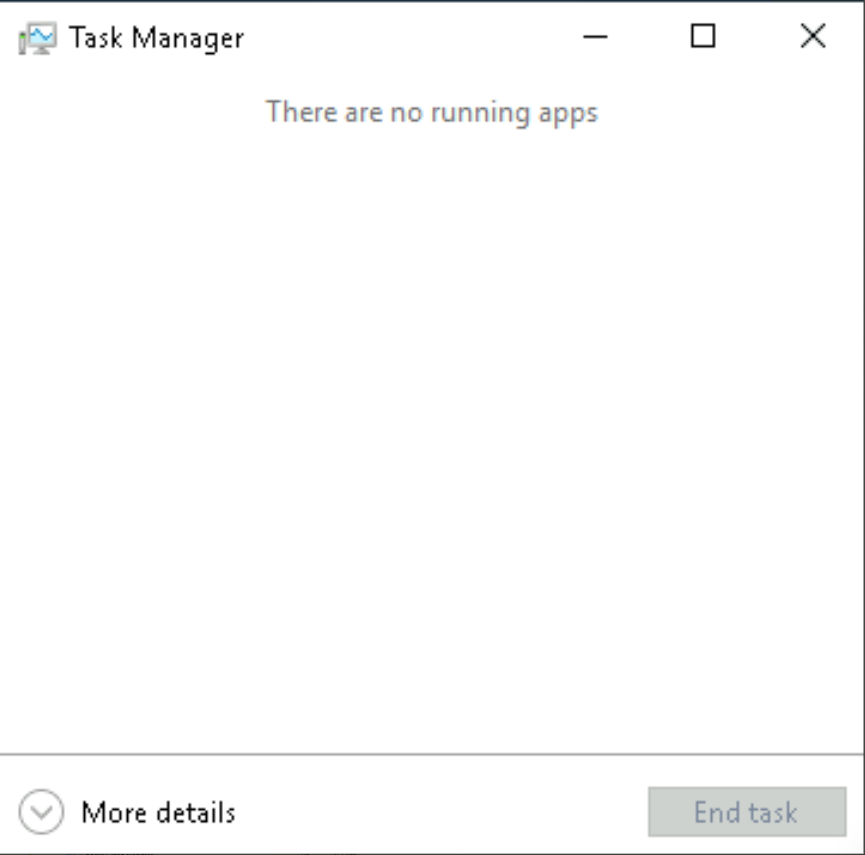
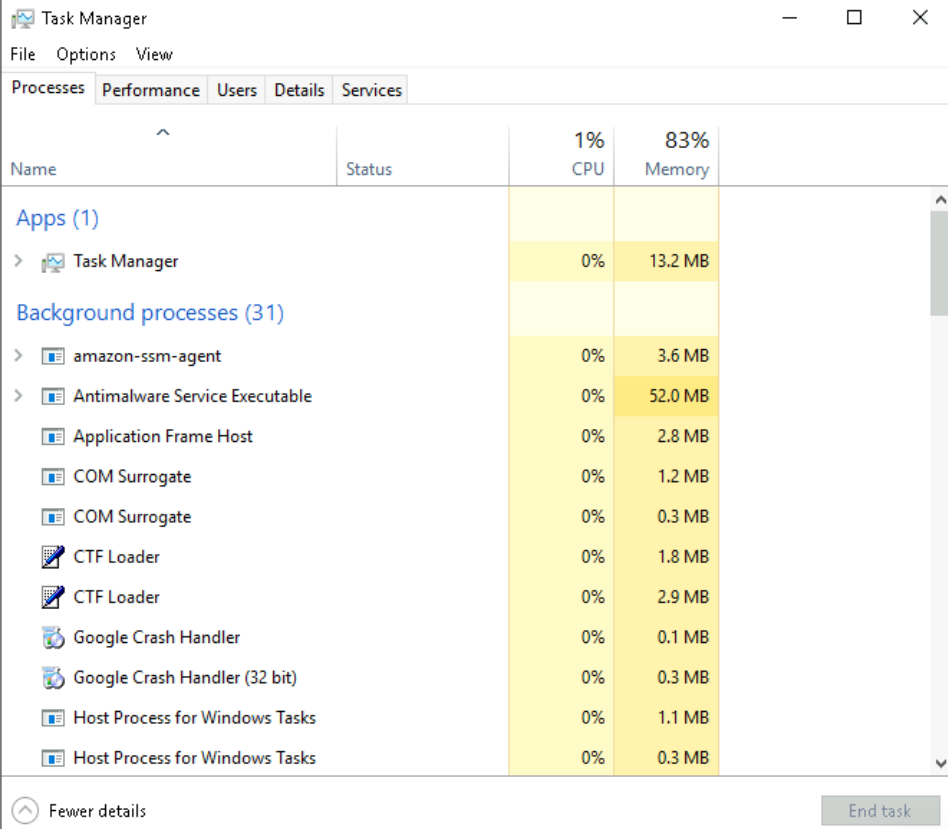
 The Task Manager is a tool in Windows that shows you what’s currently running on your computer. This includes apps you have open, as well as background processes you might not see directly, like system tasks.
Task Manager also provides useful information on how your computer is performing. For example, it shows how much of your CPU (the computer’s brain) and RAM (memory) is being used, which is helpful for troubleshooting or understanding what might be slowing down your computer.
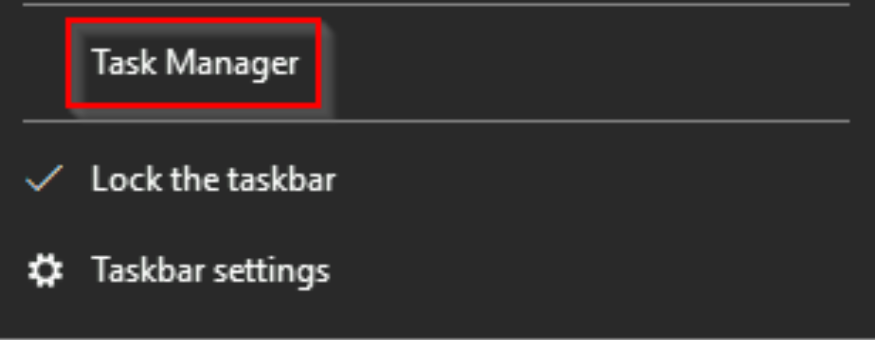
To open the Task Manager, simply right-click on the taskbar (the bar at the bottom of your screen) and select Task Manager.
Question
What is the keyboard shortcut to open Task Manager?(Research)
Click to see Answer
Ctrl+Shift+EscTask 10 - Conclusion
Familiarizing yourself with these fundamentals will improve your Windows experience, making it easier to troubleshoot, customize, and secure your system.
See you in the next room..