Linux Fundamentals Part 3
Task 1 - Introduction
This room is about automation, package management, and service/application logging.

Task 2 - Deploy your Linux Machine
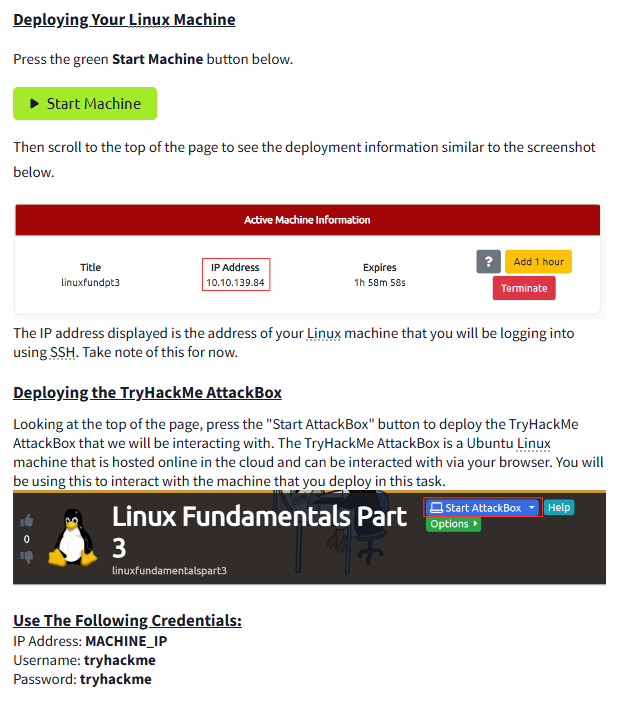 Here’s is what is should like when you ssh into the machine:
tryhackme@linux3:/tmp# nano myfile
Task 3 - Terminal Text Editors
  GNU nano 4.8                                             myfile

^G Get Help    ^O Write Out   ^W Where Is    ^K Cut Text    ^J Justify     ^C Cur Pos     M-U Undo       M-A Mark Text
^X Exit        ^R Read File   ^\ Replace     ^U Paste Text  ^T To Spell    ^_ Go To Line  M-E Redo       M-6 Copy Text
Now that we are in, we can write a something in to save it
tryhackme@linux3:/tmp# nano myfile
  GNU nano 4.8                                             myfile                                             Modified

Hello TryHackMe
I can write things into "myfile"


^G Get Help    ^O Write Out   ^W Where Is    ^K Cut Text    ^J Justify     ^C Cur Pos     M-U Undo       M-A Mark Text
^X Exit        ^R Read File   ^\ Replace     ^U Paste Text  ^T To Spell    ^_ Go To Line  M-E Redo       M-6 Copy Text
Editing Text: Once you’re in Nano, you can start typing right away. You can use the arrow keys on your keyboard to move around the text. Press “Enter” to create a new line.
Saving Your Work: When you want to save what you’ve written, press Ctrl + O (this means hold down the “Ctrl” key and then press “O”). After that, press “Enter” to confirm the filename.
Exiting Nano: To leave Nano, press Ctrl + X. If you have unsaved changes, Nano will ask if you want to save them before exiting.
Useful Commands:
Search for text: Press Ctrl + W.
Copy and paste text: ````Use Ctrl+Kto cut text andCtrl + Uto paste it.
Jump to a specific line: PressCtrl + _```, then type the line number.
VIM VIM is a more advanced text editor that offers a lot of powerful features, but it has a steeper learning curve than Nano. Here are some basics:
Opening VIM: To open a file with VIM, type vim filename in the terminal, replacing “filename” with your desired file name.
Editing in VIM:
VIM starts in Normal mode, where you can’t directly type text. To start editing, you need to press i to enter Insert mode. In this mode, you can type and make changes.
To return to Normal mode, press the Esc key.
Saving and Exiting:
To save your changes in Normal mode, type :w and press “Enter.”
To exit VIM, type :q and press “Enter.” If you want to save and exit at the same time, type :wq and press “Enter.”
If you want to exit without saving changes, type :q! and press “Enter.”
Additional Features: VIM has many powerful features for programming and text editing, like syntax highlighting and advanced search capabilities, but it requires more practice to learn.
Task 4 - General/Useful Utilities
Here’s a breakdown of how to use wget to download files, with the example provided:
Downloading Files with wget The wget command is a useful tool for downloading files directly from the web via HTTP, HTTPS, or FTP protocols. This command can retrieve any file from a specified URL and save it to your local machine.
Let’s walk through a simple example to understand how wget works :
wget https://assets.tryhackme.com/additional/linux-fundamentals/part3/myfile.txt
Here’s a breakdown of how to use wget to download files, with the example provided:
Downloading Files with wget The wget command is a useful tool for downloading files directly from the web via HTTP, HTTPS, or FTP protocols. This command can retrieve any file from a specified URL and save it to your local machine.
Let’s walk through a simple example to understand how wget works.
Example Usage Imagine you want to download a file called “myfile.txt” from a given URL. Using wget, you can do this easily by typing:
bash Copy code wget https://assets.tryhackme.com/additional/linux-fundamentals/part3/myfile.txt Explanation of the Command wget: The command itself. It tells your system that you want to retrieve (download) a file from the web. https://assets.tryhackme.com/additional/linux-fundamentals/part3/myfile.txt: This is the URL of the file you want to download. You need to provide the complete URL so wget knows exactly where to find the file online.
Task 5 - Processes 101
The Windows folder (C:\Windows) is like the home base for your computer’s operating system, where all the critical files for running Windows are stored. Although it’s usually in the C drive, it doesn’t have to be there. It could technically be on a different drive or in a different folder.
To make things simpler for both the computer and the user, Windows uses something called environment variables. Think of these as shortcuts or labels that point to important locations or settings.
For example, instead of always saying, “Look in C:\Windows for the Windows files,” Windows uses a variable called %windir%. This is like a placeholder or nickname that tells the computer, “Go to the folder where the Windows files are, no matter where it actually is.” So even if Windows is installed somewhere unusual, the computer knows how to find it.
Microsoft explains environment variables as being like a cheat sheet for the operating system. They store key pieces of information, such as:
- Where Windows is installed.
- How many processors your computer has.
- Where temporary files should go.
These shortcuts make it easier for the operating system and apps to find what they need without relying on fixed locations.
Task 6 - Maintaining Your system: Package Management
Imagine your computer as a busy assistant that can follow a schedule to perform tasks automatically. Some of these tasks might include opening an app like Spotify every morning, backing up your files at night, or running specific commands whenever needed.
The “cron” process is like a behind-the-scenes manager in your computer that handles these scheduled tasks. To tell this manager what you want done and when, you use something called a “crontab” (short for “cron table”). A crontab is basically a to-do list for the cron manager.
For example:
If you want your computer to clean up old files every day at 2 AM, you would write this task in the crontab. If you want a reminder to pop up every Friday at 5 PM, you can set that up too. Once you set up a crontab, the cron manager checks it regularly and makes sure the tasks happen exactly on schedule. This is especially handy for automating repetitive or time-sensitive actions.
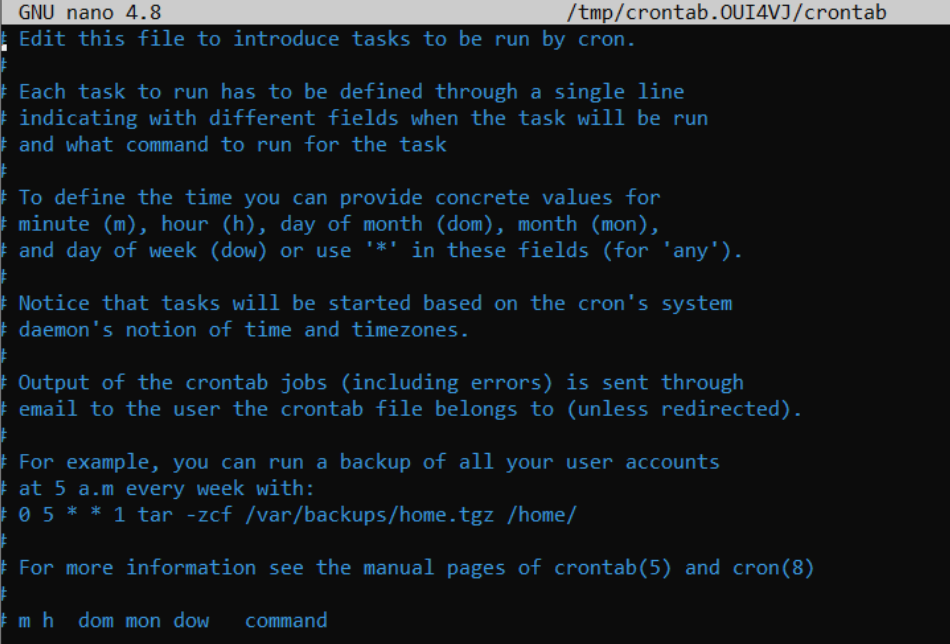
Here are the cron tabs values that you should be aware of to use cron tabs:
MIN - What minute to execute at HOUR - What hour to execute at DOM - What day of the month to execute at MON - What month of the year to execute at DOW - What day of the week to execute at CMD - The Actual commnad that will be executed.
Example:
0 */12 * * * cp -R /home/cmnatic/Documents /var/backups/
This means:
0: Start the task at 0 minutes past the hour.
*/12: Do it every 12 hours.
* * *: It doesn’t matter what day, month, or year—just every 12 hours.
The command cp -R /home/cmnatic/Documents /var/backups/ means copy everything from the Documents folder to the backups folder.
Task 7 - Maintain your system: Logs
When developers create a program, they can share it with the Linux community by adding it to a library called a repository (repo for short). Think of it as an app store for Linux. Once their program is approved, anyone can easily download and install it.
Linux is great because it makes it super simple for users to get these tools and programs. Plus, most of the software is open-source, meaning people can see how it works and even improve it.
On an Ubuntu computer, there are special files that act like a directory to all these repositories. They tell your computer where to look to find and download the software you want. When you use a command like ls to list files, these files are like signposts for the software library.
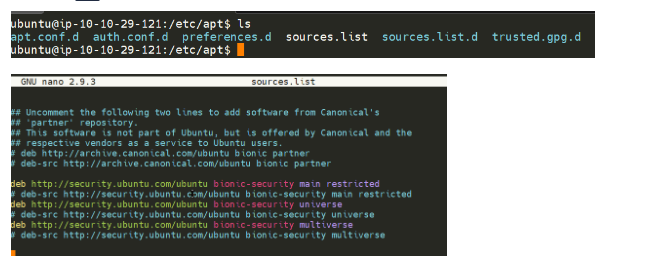
Operating systems like Linux come with a built-in “app store” called repositories. These repositories are where the system downloads and updates software from. Think of it as a trusted library of programs that your OS knows and uses.
Now, while your OS comes with its own official library (or repository), you can also add other libraries made by the community or different organizations. This lets you access more software or features that aren’t in the default library.
Adding these extra libraries is simple—you can use a command called add-apt-repository to tell your system, “Hey, here’s another trusted library to look at!” Some of these libraries might even be closer to where you live, making downloads faster.
In short, adding repositories expands what your OS can do, just like getting more shelves in your app store!
When using Ubuntu, we normally install software with a command called apt. This is part of a tool that helps manage software easily, making sure everything stays updated and secure.
Sometimes, the software you want to use isn’t available in the standard Ubuntu library (called a repository). In that case, you can add a new repository, like adding a new shelf to your app store. One way to do this is by using a command called add-apt-repository, but you can also do it manually.
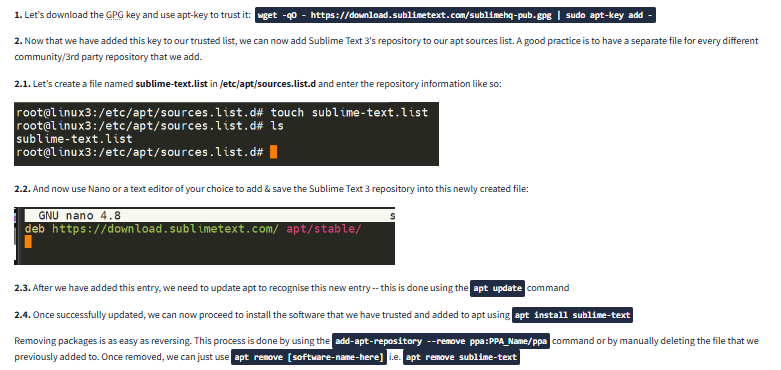
Here’s an example: Let’s say you want to install a text editor called Sublime Text. It’s not in Ubuntu’s default library, so you’ll need to add its repository manually. But before adding it, you need to confirm that the repository is trustworthy. This is done using a security check called a GPG key.
A GPG key is like a digital signature from the developers saying, “This software is safe and comes from us.” If your system finds that the key doesn’t match, it won’t download the software, helping protect you from fake or harmful programs.
In this case, before adding Sublime Text’s repository, we’d start by downloading and adding its GPG key to our system. This step ensures everything is secure before you proceed.
Maintaining your repositories
Question
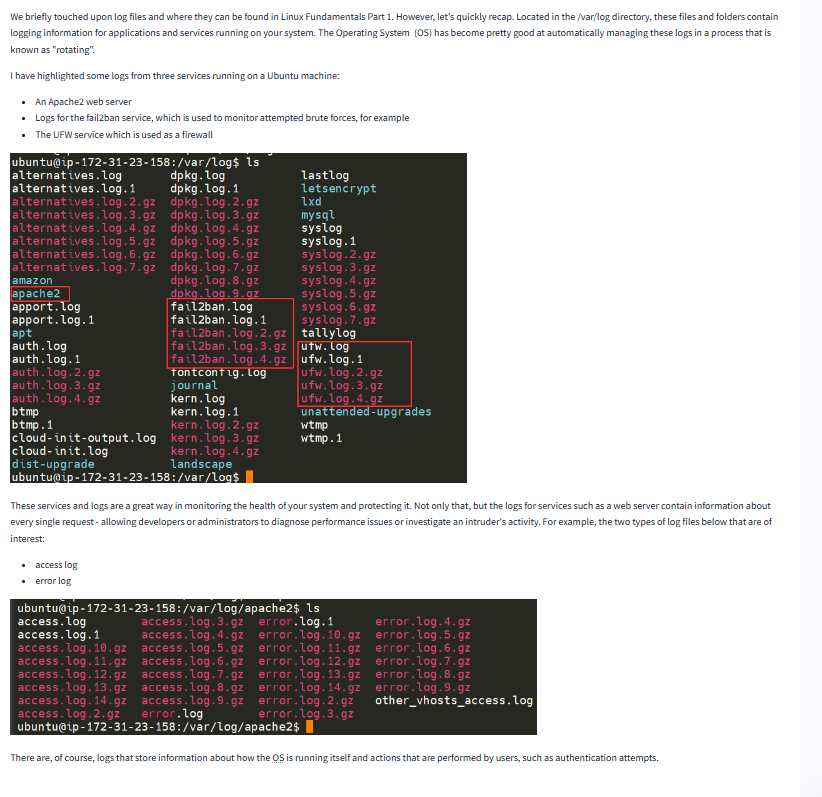
Look for the apache2 logs on the deployable Linux machine
Question
What is the IP address of the user who visited the site?
Click to see Answer
10.9.232.111Question
What file did they access?
Click to see Answer
catsanddogs.jpgTask 8 Maintain your system: Logs
Conclusions & Summaries
This guide explores essential Linux system management tools and concepts, covering:
Text Editors: Basics of Nano (user-friendly) and VIM (advanced) for creating and editing files directly in the terminal. File Downloads: Using the wget command to download files from the internet via URLs. Repositories: Understanding Linux software repositories, how to add them, and ensuring security with GPG keys for software integrity. Scheduled Tasks: Introduction to cron jobs and crontab for automating repetitive tasks like backups. Logs: Locating and interpreting system logs, including accessing Apache2 logs to identify user activity and accessed files. The write-up emphasizes practical tools and commands to manage Linux effectively while maintaining security and automation.
Question Terminate the machine deployed in this room from task 2.
Question
Continue your learning in other Linux-dedicated rooms.
see you in the next room…