Linux Fundamentals Part 2
Task 1 - Introduction
This is continuation of the Linux series and will cover topics
like automation, package management, and service/application logging.
Question
Lets Proceed!

Task 2 - Accessing Your Linux Machine Using SSH (Deploy)
What is SSH?
SSH, or Secure Shell, is like a secret door into a computer from anywhere, as long as you have permission. Imagine you have a secure remote access to a computer that’s far away. SSH is the tool that lets you safely “walk through” that door to control the computer and do tasks on it as if you were right there.
Here’s how it works:
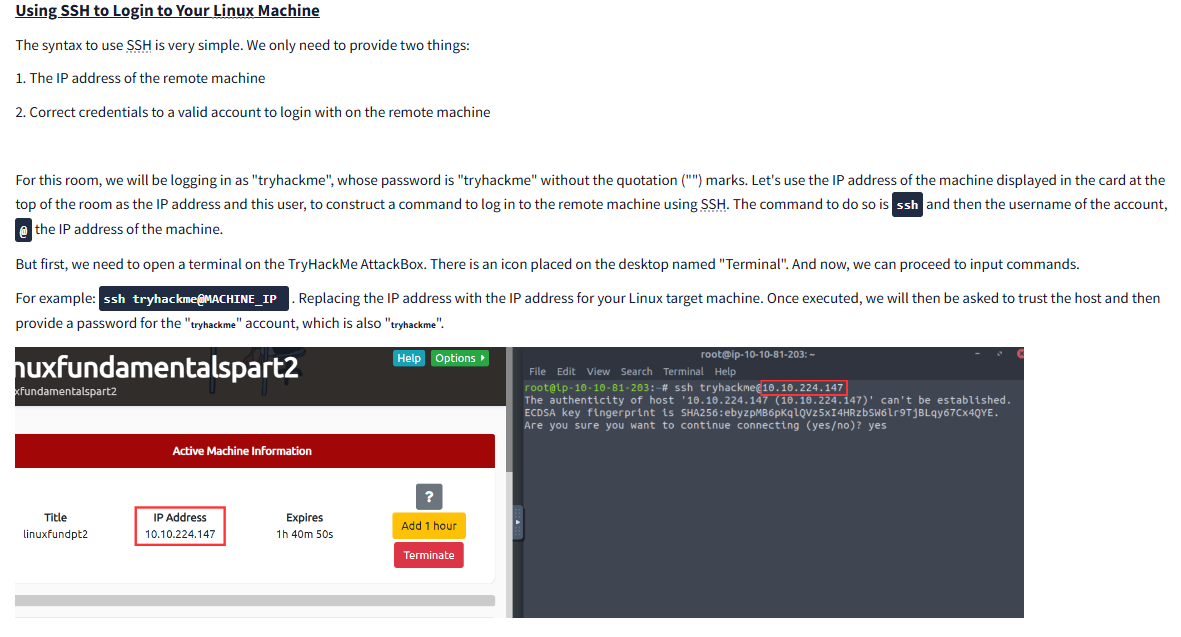
Making a Connection: First, you (the client) try to connect to another computer (the server) using SSH. You usually need the address (like an IP) of the computer you want to access and a username to log in.
Authenticating Securely: To make sure you’re actually allowed in, SSH requires some form of authentication. This is usually done with a password, or better yet, SSH keys (a pair of digital keys, one on your computer and one on the remote computer, that match each other). Think of SSH keys like a unique set of two puzzle pieces that fit perfectly together.
Encrypted Communication: Once connected, everything you send back and forth (like commands or data) is encrypted, so even if someone could see the traffic, they couldn’t read it. This is the “secure” part of SSH—no one else can listen in(Its encrypted).
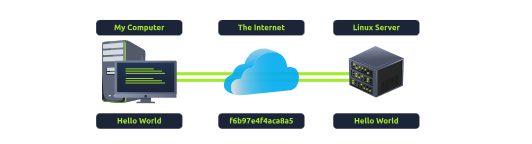
Remote Control: Once you’re in, you can send commands to the remote computer to do tasks like managing files, running programs, or even setting up other connections. It’s especially useful for managing servers that don’t have screens or keyboards.
So SSH allows you to securely access, control, and manage a computer from anywhere in the world, using a secure, encrypted “tunnel” that keeps your data private.
Question
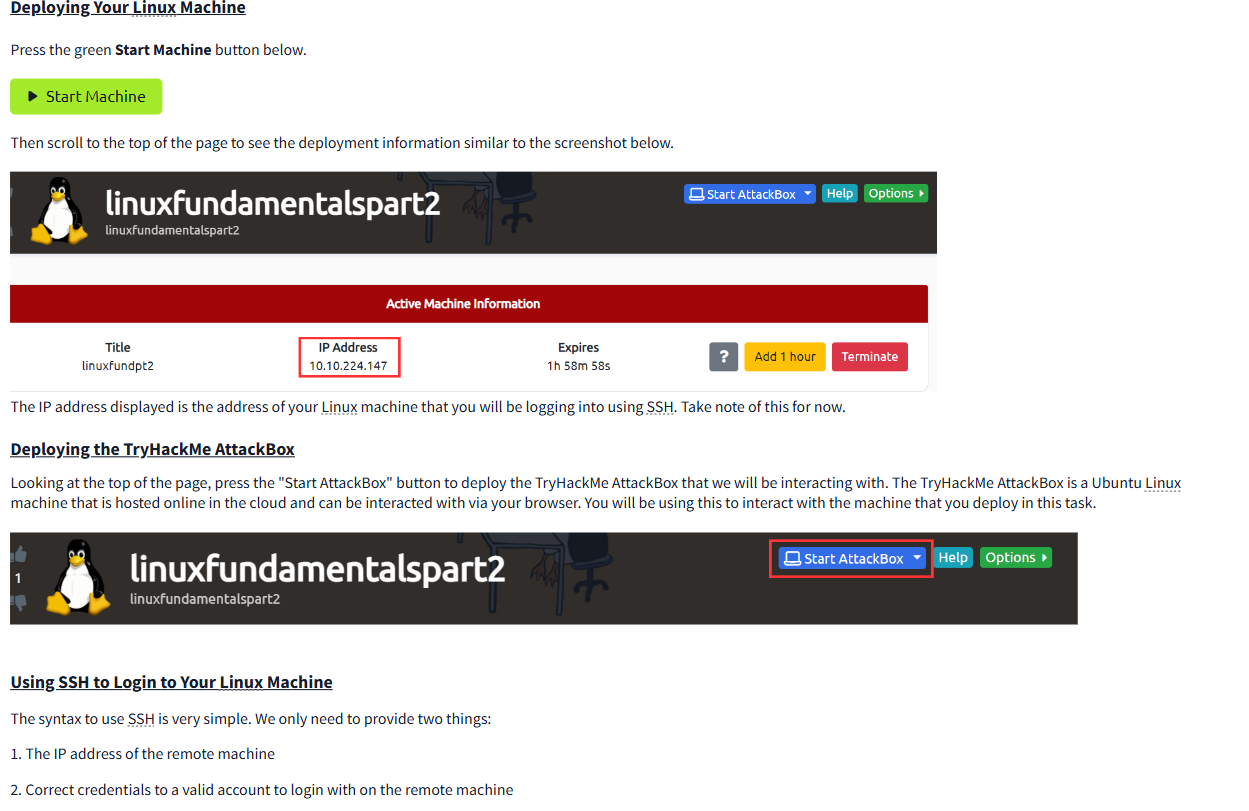
I’ve logged into the Linux Fundamentals Part 3 machine using SSH and have deployed the AttackBox successfully!
Task 3 - Introduction to Flags and Switches
many commands in computing can take extra “options” or “settings” that let you customize what the command does. These options are called flags or switches and are marked by a hyphen (-) followed by a specific word or letter.
Imagine you’re using the command ls on your computer to look at the files in a folder. If you just type ls by itself, it will show a list of files and folders, but it will leave out hidden files (files with names starting with a dot, like .hiddenfile). If you want to see these hidden files too, you could add a flag to the command—specifically, -a (where “a” stands for “all”).
So, typing ls -a will show you all the files, including hidden ones.
Here’s the general idea:
Command: This is the main action you want to do (like ls to list files). Default Behaviour: If you don’t add any flags, the command does the basic action, like listing regular files. Flags or Switches: These let you tweak the command’s behaviour. For instance, -a in ls -a adds hidden files to the list. Each command has its own set of possible flags, and they help you control exactly what the command does.
Task 4 - Filesystem Interaction Continued
- This tasks goes over how to:
- Create files and folders
- Move files and folders
- Delete files and folders
Lets go through this.
touch (Create file): This command creates a new, empty file. Imagine it like placing a blank piece of paper on your desk to start with.
 tryhackme@linux2:~$ touch note
 tryhackme@linux2:~$ ls
 folder1 note
mkdir (Make Directory): This command creates a new folder. It’s like making a new folder on your computer where you can put related files together.
 tryhackme@linux2:~$ mkdir mydirectory
 tryhackme@linux2:~$ ls
 folder1 mydirectory note
mv (Move): This command moves a file or folder from one place to another, like taking a book from one shelf and placing it on another. in this case note Like this:
 tryhackme@linux2:~$ mv note2 note3
tryhackme@linux2:~$ ls
folder1 note note3
rm (Remove): This command deletes a file or folder, like throwing away something you don’t need anymore.
This is to remove a file and Second terminal session remove the directory:
 tryhackme@linux2:~$ rm note
 tryhackme@linux2:~$ ls
 folder1 mydirectory
 tryhackme@linux2:~$ rm -R mydirectory
 tryhackme@linux2:~$ ls
 folder1
File (File type check)```: This command checks what kind of file it is, telling you if it’s a text document, an image, a video, etc. It’s like reading the label on a package to see what’s inside.
tryhackme@linux2:~$ file note
note: ASCII text
Question
How would you create the file named “new note”
The command to create files is touch using like this:
tryhackme@linux2:~$ ls
important  myfile  myfolder  newnote  unknown1
Click to see Answer
touch newnote
Question
On the deployable machine, what is the file type of “unknown1” in “tryhackme’s” home directory?
The command to check for files is file like this:
tryhackme@linux2:~$ file unknown1
unknown1: ASCII text
Click to see Answer
ASCII text
Question How would we move the file “myfile” to the directory “myfolder”
To solve this use mv with folder/file that is going to be used first, then folder that is going to like this:
tryhackme@linux2:~$ ls
important  myfile  myfolder  newnote  unknown1
tryhackme@linux2:~$ mv myfile myfolder
If you check in myfolder directory you’ll see it
tryhackme@linux2:~$ ls
important  myfolder  newnote  unknown1
tryhackme@linux2:~$ ls myfolder
myfile
Click to see Answer
mv myfile myfolder
Question
How would we move the file “myfile” to the directory “myfolder”
The command open is file is cat
tryhackme@linux2:~$ cat myfile
THM{FILESYSTEM}
Click to see Answer
THM{FILESYSTEM}
Question
Continue to apply your knowledge and practice the commands from this task.
Task 5 - Permissions 101
The numbers with hyphens(-rwsr-xr-x) all mean something. Its not complex at all add will be explained later.
A way to view file permissions like this:
tryhackme@linux2:~$ ls -lh
-rw-r--r-- 1 cmnatic cmnatic 0 Feb 19 10:37 file1
-rw-r--r-- 8 cmnatic cmnatic 0 Feb 19 10:37 file2
r is for read w is for write x is for execute
Like in other OS’s you can switch others between admin to normal users with the command su
tryhackme@linux2:~$ su user2
Password:
user2@linux2:/home/tryhackme$
There are switches or flags you can use to extend su which are
The -l or --login switch:
If you add -l when using su, it’s like fully logging in as that user. This means you’re not just using their permissions but also stepping into their “environment,” which includes all their settings, shortcuts, and preferences.
Like this:
tryhackme@linux2:~$ su -l user2
Password:
user2@linux2:~$ pwd
user2@:/home/user2$
So, adding -l makes it feel like you’re completely logged in as the new user rather than just borrowing their access temporarily
Question
On the deployable machine, who is the owner of “important”?
In the output below, the first section is the user permission, the next groups are the 2 users that have their file permissions.
tryhackme@linux2:~$  ls -l
total 16
-rw-r--r-- 1 user2     user2       1 May  5  2021 important
-rw-r--r-- 1 tryhackme tryhackme   16 May  5  2021 myfile
drwxr-xr-x 2 tryhackme tryhackme 4096 May  4  2021 myfolder
-rw-r--r-- 1 tryhackme tryhackme   17 May  4  2021 unknown1
Question
What would the command be to switch to the user “user2”?
The command to switch users is su
Click to see Answer
su user 2
Question
Now switch to this user “user2” using the password “user2”
tryhackme@linux2:~$ su user2
Password:
user2@linux2:/home/tryhackme$ whoami
user2
Click to see Answer
su user 2
Question
Output the contents of “important”, what is the flag?
The command to open files is cat
tryhackme@linux2:~$ cat important
<Flag>
Click to see Answer
THM{SU_USER2}
Task 6 - Common Directories
Even if you make your directories there some default directories that you’ have to be aware that crucial in Kali Linux or Linux based systems like ubuntu
/etc
The /etc directory on a Linux system is like a big control room full of configuration files that help the operating system and software know how to run properly. Think of it as the “settings” folder for the entire system.
Here are some key things in /etc:
sudoers file: This file is like a list of VIPs who are allowed to run certain commands with “superpowers” or admin rights. These users can do things that require higher permissions (like installing software or changing system settings).
passwd and shadow files: These are where user login details are kept. The passwd file holds usernames and some basic information about them. Meanwhile, the shadow file holds the actual passwords—but don’t worry, the passwords aren’t stored as plain text. They’re heavily scrambled (using a method called sha512 encryption) so they’re secure and can’t be easily read.
tryhackme@linux2:/etc$ ls
shadow passwd sudoers sudoers.d
In short, /etc is the folder where Linux keeps important files that let it know who can do what and how to run everything properly.
/var
The /var directory on a Linux system is like a storage room for files that are constantly changing or being updated as the system runs. The “var” part stands for “variable,” because the data here changes regularly.
Here’s what you’ll find in /var:
Log files: Whenever the system or any app wants to keep a record of what’s happening, like errors, updates, or general activity, it writes these records as lo g files inside /var/log. These logs help in troubleshooting and understanding system activity.
Database data: If there are any apps or services (like a website) that rely on databases, they often store pieces of their data here, which makes it easier to access and update frequently.
Basically, /var is where Linux stores files that it needs to keep track of but that are expected to change over time as the system is used.
Task 7 - Conclusions and Summaries
Task 8 - Linux Fundamentals Part 3
Here’s link for the room to part 3 of Linux: Linux fundemntals Part 3