Linux Fundamentals Part 1
Task 1 - Introduction
From Tryhackme the info’s easy to understand:
Welcome to the first part of the “Linux Fundamentals” room series. You’re most likely using a Windows or Mac machine, both are different in visual design and how they operate. Just like Windows, iOS and MacOS, Linux is just another operating system and one of the most popular in the world powering smart cars, android devices, supercomputers, home appliances, enterprise servers, and more.
We’ll be covering some of the history behind Linux and then eventually starting your journey of being a Linux-wizard! This room will have you:
Running your very first commands in an interactive Linux machine in your browser Teaching you some essential commands used to interact with the file system Demonstrate how you can search for files and introduce shell operators

Task 2 - A bit of background on Linux
Where is Linux Used? Linux is a type of operating system (OS), similar to Windows, but it can seem more complicated at first. However, Linux has some big advantages, like being lightweight and efficient. You might be surprised to learn that you probably encounter Linux every day in various devices and systems, such as:
Websites: Many websites run on Linux servers. Cars: The entertainment and control systems in cars often use Linux.
Stores: The checkout systems (like registers) in shops usually rely on Linux.
Critical Systems: Important infrastructure, like traffic lights and sensors, often uses Linux to function.
Flavors of Linux The term “Linux” refers to a variety of operating systems that are based on UNIX. Because Linux is open-source (meaning anyone can use and modify it), there are many different versions designed for specific uses.
For example, Ubuntu and Debian are popular versions of Linux. Ubuntu can be set up to work as a server for websites or as a regular desktop computer. Even more, you can run Ubuntu on computers with very little memory—just 512MB of RAM!
Just like there are different versions of Windows (like 7, 8, and 10), there are many versions of Linux to choose from, each suited for different tasks. For this series, we’ll focus on using Ubuntu.
Question
Research: What year was the first release of a Linux operating system?
Click to see Answer
1991Task 3 - Interacting with your first Linux machine
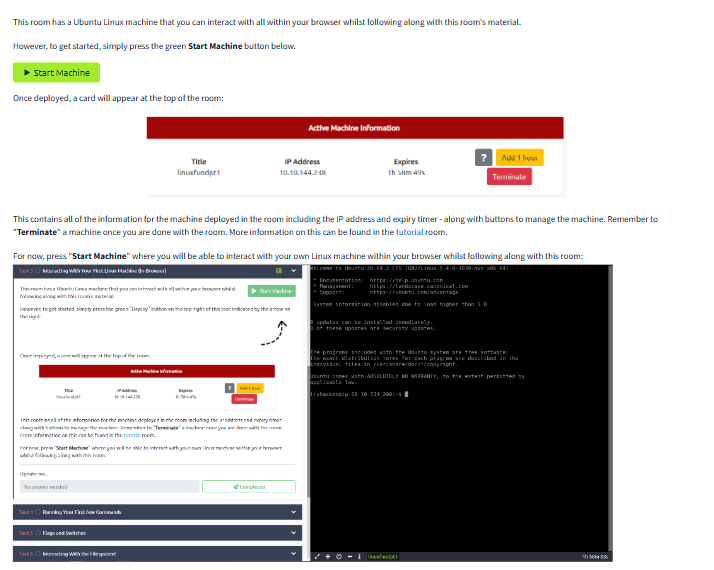
Task 4 - Running your first Few commands
A terminal is a user interfaces that uses text commands to interact with the operating system
tryhackme@linux1:~$ enter commands here
Basic Commands in Linux: echo - Outputs text that you input.You can use it to quickly check if a command works, display messages, or see values (like variables in scripts).
tryhackme@linux1:~$ echo hey there
hey there
tryhackme@linux1:~$
whoami - tell who you are logged in as. It’s helpful if you’re on a shared computer or using remote systems and need to double-check which account you’re using.
tryhackme@linux1:~$ whoami
tryhackme
tryhackme@linux1:~$
Question
If we wanted to output the text “TryHackMe”, what would our command be? hint:(Remove the quotation marks!)
With commands we have used so far, the one that outputs what you put in is echo*. Add that with the text we are trying to output and should be able to get a good idea of what the command is.
Click to see Answer
echo Tryhackme
Question
What is the username of who you’re logged in as on your deployed Linux machine?
Click to see Answer
TryhackmeTask 5 - Interacting with the file system
ls - Listing What it does: Shows you a list of files and folders in your current location on the computer Think of it like this: Imagine opening a drawer and seeing everything inside. When you type ls, it’s like peeking inside the folder or directory you’re in to see what’s there.
⚠️ Note: The technical term for “folder” is “directory.” They mean the same thing, so don’t get confused if you see one term instead of the other.
cd - Change Directory What it does: Moves you from one folder (directory) to another. Think of it like this: You’re walking through different rooms in a house. Typing cd with a folder name is like stepping into that specific “room” or folder on your computer. For example, cd Documents would take you into the “Documents” folder.
cat - Concatenate What it does: Shows you the contents of a file right on your screen. Think of it like this: If ls is like looking at a list of files, cat is like opening up one of those files and reading it. If you type cat myfile.txt, you’ll see what’s inside “myfile.txt” without needing to open a separate program.
pwd - Print Working Directory What it does: Shows you the path of the folder you’re currently in. Think of it like this: It’s like asking, “Where am I?” and getting the full address. If you’re in the “Documents” folder, typing pwd might show something like /home/user/Documents, so you know exactly where you are in the computer’s structure.
In summary:
ls: See what’s in your current location.
cd: Move to a different location.
cat: Read a file.
pwd: Check where you are.
These commands help you navigate and interact with files on your computer without needing any icons or windows!
Listing Files in Our Current Directory (ls)
tryhackme@linux1:~$ ls
'Important Files' 'My Documents' Notes Pictures
Here we see Important Files,My Documents,Notes,Pictures
To list files you are looking for faster. You can add the folder/directory to narrow down your search. For example
ls pictures
Changing Locations (Folders) with cd
Purpose: The cd (change directory) command moves you from one folder to another, like going from one room to another in a building.
Example:
Typing cd Pictures moves you into the Pictures folder.
To confirm, you can type ls again to see what’s in Pictures
dog_picture1.jpg dog_picture2.jpg dog_picture3.jpg dog_picture4.jpg
Why it’s useful: Once you’re in the folder you want, you can interact with the files in it more easily.
Viewing the Contents of a File with cat
Purpose: Knowing a file exists is useful, but seeing what’s inside the file is often the real goal. The cat command lets you view the content without needing to open it in a program.
Example:
First, use ls to list what’s in a folder, Next use cat with the file name to see the content like this:
tryhackme@linux1:~/Documents$ ls
todo.txt
tryhackme@linux1:~/Documents$ cat todo.txt
Here's something important for me to do later!
Now you know the file’s content!
Pro Tip: If a file is in another folder, you can skip moving into that folder by using cat with the full path. For example, cat /home/ubuntu/Documents/todo.txt
Finding Your Location in the Computer with pwd
Purpose: If you’ve moved around folders, it’s easy to lose track of where you are. The pwd (print working directory) command shows your exact location, like an address.
Example:
Let’s say you’re in the Documents folder and want to know exactly where that is on the computer. Typing pwd might show:
tryhackme@linux1:~/Documents$ pwd
/home/ubuntu/Documents
tryhackme@linux1:~/Documents$
This output means you’re in the Documents folder located in home > ubuntu > Documents on your computer.
Why it’s helpful: Now you know the “address” of Documents, and if you need to come back here from another location, you can use cd /home/ubuntu/Documents.
Question
On the Linux machine that you deploy, how many folders are there?
Using the ls command we can list the numbers folders that exist for the current user:
tryhackme@linux1:~$ ls
access.log  folder1  folder2  folder3  folder4
Click to see Answer
4
Question
Which directory contains a file?(Hint: We’ve discussed about a certain command that can be used to list contents of directories)
Step 1You have to cd to different folders to check if there files in them and ls to see if there’s file in any of the folders.
Step2 If the directory does not have a file you’d have to cd to the ~ ( Is the home directory for the current users which shows all the folders that are avialble.)
Like this:
tryhackme@linux1:~$ cd folder1
tryhackme@linux1:~/folder1$ cd ~
tryhackme@linux1:~$ ls
access.log  folder1  folder2  folder3  folder4
Step3
Now that we can go through files eventually you will find out that folder 4 is the one with file by using cd and ls :
tryhackme@linux1:~$ cd folder4
tryhackme@linux1:~/folder4$ ls
note.txt
Click to see Answer
folder 4
Question
What is the contents of this file?
Step 1 we use cat as shown below to open contents of file
tryhackme@linux1:~/folder4$ cat note.txt
Hello World!
tryhackme@linux1:~/folder4$
Click to see Answer
Hello World
Question
Use the cd command to navigate to this file and find out the new current working directory. What is the path?
Step1 To solve this go to folder4 just as we have done previously to find the contents of the file
Step2 The command that will allow us to see what directory we are in pwd as shown below
tryhackme@linux1:~$ ls
access.log  folder1  folder2  folder3  folder4
tryhackme@linux1:~$ cd folder4
tryhackme@linux1:~/folder4$ ls
note.txt
tryhackme@linux1:~/folder4$ cat note.txt
Hello World!
tryhackme@linux1:~/folder4$ pwd
/home/tryhackme/folder4
Click to see Answer
/home/tryhackme/folder4Task 6 - Searching for Files
Linux can look intimidating, but once you understand a few basics, it can become an incredibly powerful tool. The true magic of Linux is how efficient it allows you to be. When you’re familiar with it, you can perform complex tasks in just a few commands, cutting down the time and effort spent on repetitive work.
Let’s say you’re working on a Linux system like Ubuntu. Instead of manually navigating through folders (like clicking through files in a Windows explorer or repeatedly typing cd and ls to move through directories), Linux provides tools that can search through your system to find exactly what you need, wherever it may be.
One of these powerful tools is the find command. Think of find as a supercharged “search” button that you can control in a very specific way. With find, you don’t have to guess where things are stored; you just ask Linux to look for files or folders based on criteria you provide. For example:
You can tell find to look for a specific file name.
You can ask it to search in only certain types of files (like text files).
You can even filter by the date a file was last modified or by its size.
By using commands like find , you’re not only saving time but also learning to take control of your operating system. You’re telling it what you need, and it brings the results directly to you! This is where Linux becomes a powerful tool for those who invest a little time to understand it. And remember, it’s a journey—over time, commands like find will become second nature.
Using Find
tryhackme@linux1:~$ ls
Desktop Documents Pictures folder1
tryhackme@linux1:~$
In the example above there are 4 folders for the current user ,Desktop,Documents,Pictures and folder1
It is possible for the folders have folders in themselves. The command find solves this problem by searching through all folders regardless of their location. The file we are looking for in this case is password.txt. With this in mind we can use the command find -name passwords.txt where the command checks every folder to see if the file exists like this :
tryhackme@linux1:~$ find -name passwords.txt
./folder1/passwords.txt
tryhackme@linux1:~$
If we didnt know the full name of the file, adding a * looks for any file that has txt in it like this:
tryhackme@linux1:~$ find -name *.txt
./folder1/passwords.txt
./Documents/todo.txt
tryhackme@linux1:~$
Using grep is like having a powerful “find” tool that can scan through files for exactly what you’re looking for. It’s especially handy if you’re working with large files and only need to see specific information.
Imagine a web server’s access log, which tracks every visit to a website. If that log has hundreds of entries, searching through it manually to find specific entries, like everything a particular user or IP address did, would be really time-consuming.
This is where grep comes in. You tell grep what you’re looking for—in this case, a specific IP address—and it will pull up only the lines that include that IP from the file. This makes it much quicker to see all the actions of that IP without sifting through the entire log.
Here Tryhackme used the wc command to count the number of entries in the log file
tryhackme@linux1:~$ wc -l access.log
244 access.log
tryhackme@linux1:~$
the cat command would not be effective in this case because it will just open the whole file without showing what we specifically asked for.
When we use the grep command, we are able to filter to exact thing we are searching for like this:
tryhackme@linux1:~$ grep "81.143.211.90" access.log
81.143.211.90 - - [25/Mar/2021:11:17 + 0000] "GET / HTTP/1.1" 200 417 "-" "Mozilla/5.0 (Linux; Android 7.0; Moto G(4))"
tryhackme@linux1:~$
So in short, grep searches the contents of files for specific terms, making it a powerful tool to quickly find what you need.
Question
Use grep on “access.log” to find the flag that has a prefix of “THM”. What is the flag?
Using the information above, we can find what we are using the grep command.
by simply typing in grep the command then what we are lookinng for “TMM” in quotation. Then the name of the file we are looking into, Access log like this:
tryhackme@linux1:~$ ls
access.log  folder1  folder2  folder3  folder4
tryhackme@linux1:~$ grep "THM" access.log
13.127.130.212 - - [04/May/2021:08:35:26 +0000] "GET THM{ACCESS} lang=en HTTP/1.1" 404 360 "-" "Mozilla/
5.0 (Windows NT 10.0; Win64; x64) AppleWebKit/537.36 (KHTML, like Gecko) Chrome/77.0.3865.120 Safari/537
.36"
Click to see Answer
THM{ACCESS}Question
And I still haven’t found what I’m looking for
Task 7 - An Introduction to shell operators
Linux operators are like shortcuts that let you control how commands interact with each other or where their outputs go. Here’s a breakdown of the four key operators and what they do:
& (Background Operator)
This lets you run a command in the background, so you can keep using your terminal for other things. For example, if you start a long-running task with command &, it will work in the background without locking up your terminal. For example ```command1 && commad2. The second command will only run if the command1 was successful. && (And Operator)
This combines commands so they run one after the other, but only if the first command is successful. For instance, command1 && command2 will run command2 only if command1 finishes without errors. It’s helpful for chaining tasks where each depends on the previous one finishing correctly.
> (Redirect Output) This takes the output from a command and redirects it into a file. If the file already exists, it will be overwritten. For example, echo “Hello” > file.txt will put “Hello” into file.txt, replacing anything that was there before.
» (Append Redirect/add output to directory or path) Similar to >, but it adds the output to the end of a file instead of overwriting it. If you use echo “Hello” » file.txt, it will add “Hello” to the end of file.txt without removing any existing content. These operators give you more control over running commands, organizing tasks, and managing file outputs in Linux.
Question
If we wanted to run a command in the background, what operator would we want to use?
Use the info above
Click to see Answer
&
Question
If I wanted to replace the contents of a file named “passwords” with the word “password123”, what would my command be?(hint echo
Step 1 use echo to print out the word “password”
Step 2 use a command that redirects output, “>”
Step 3 With Step 1 and 2 in mind output the text to password123
Click to see Answer
echo password123 > passwordsThis is what happened. passwords123 was saved to passwords like this:
tryhackme@linux1:~$ echo password123 > passwords
tryhackme@linux1:~$ ls
access.log  folder1  folder2  folder3  folder4  passwords
tryhackme@linux1:~$ cat passwords
password123
Question
Now if I wanted to add “tryhackme” to this file named “passwords” but also keep “passwords123”, what would my command be
** Step 1 1 ** Use the echo command echo to add the text Tryhackme to the file passwords we previously used for the last question
** Step 2 ** use the » command to add the text to file
Click to see Answer
echo tryhackme >> passwordsThis is what happeoed. tryhackme was addded to the passwod file
tryhackme@linux1:~$ echo tryhackme >> passwords
tryhackme@linux1:~$ ls
access.log  folder1  folder2  folder3  folder4  passwords
tryhackme@linux1:~$ cat passwords
password123
tryhackme
*Question
Now use the deployed Linux machine to put these into practice
Question
Task 8 - Conclusions & Summaries
Read the information on TryHackMe
Question
I’ll have a play around!
Task 9 - Linux Fundamentals Part 2
Question Terminate the machine deployed in this room from task 3.
Join Linux Fundamentals part 2