How the Web works
Task 1 - How websites work
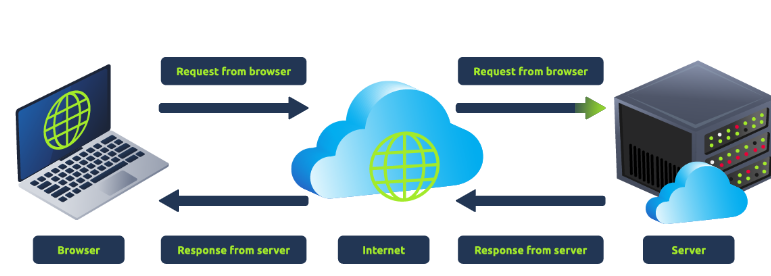
When you visit a website, your browser (like Safari or Google Chrome) sends a request to another computer called a web server, which is located somewhere else in the world. This web server’s job is to respond to your request by sending back the information your browser needs to show you the page.
For example, if you type in “example.com,” your browser asks the server for the details of that webpage. The server sends back all the information (like text, images, and code), and your browser uses this to display the page on your screen.
In short, your browser asks for the page, the web server gives it, and then your browser shows it to you.
The 2 main parts that make a website:
Front End and Back End
Front End (Client-Side): This is what you see and interact with when you visit a website. It’s the design, buttons, images, and text that appear on your screen. Your browser (like Chrome, Firefox, etc.) is responsible for displaying all of this in a way that looks nice and is easy to use. Think of it as the “face” of the website.
Back End (Server-Side): This is like the “brain” of the website that you don’t see. It’s a server (a powerful computer) that stores the website’s information and handles any requests you make. When you click a link or fill out a form, your browser sends a request to the server. The server processes this request, gathers the necessary data (like pulling information from a database), and sends it back to your browser, which then shows it to you on the front end.
Question
What term best describes the component of a web application rendered by your browser?
Click to see Answer
Front EndTask 2 - HTML
Every website uses these tools to give users both content and a good experience.
HTML creates the structure.
CSS styles and beautifies the page.
JavaScript adds functionality and interactivity.
Here’s what they do in detail:
HTML (Hypertext Markup Language): This is like the foundation of a website. It tells the browser what content to show and how it’s organized. HTML uses things called “tags” (like <h1>, <p>, etc.) to structure text, images, links, and other content. Think of it as the skeleton of a webpage.
CSS (Cascading Style Sheets): This is what makes the website look good. It controls the colours, fonts, layout, and overall style of the webpage. CSS works on top of HTML to “decorate” the content, making it visually appealing.
JavaScript: This adds interactivity and makes the website more dynamic. It can do things like create buttons that respond when clicked or update content without reloading the whole page. JavaScript makes the site come to life and respond to user actions.
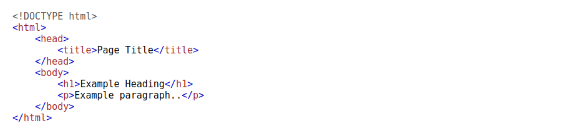
:
HTML Features
An Element in HTML is basically any building block that makes up a webpage. Each element is defined by an HTML tag, like <p> for a paragraph, <div> for a section, or <button> for a button Here are the main ones:
<!DOCTYPE html> This is just a signal to the browser that the page is written using HTML5, the latest version. It helps ensure everything is displayed properly.
<html> element. This is the main container for everything on the webpage. All the other parts of the webpage will be placed inside this.
<head> element. This part contains important information about the webpage, like its title (what you see in the browser tab), but it doesn’t show directly on the page itself.
<body> element. This is the part of the webpage that users actually see and interact with. It contains the content like text, images, buttons, and other visible elements.
<h1> element. This is a heading tag, like the title of a section. It is usually displayed big and bold.
<p> This stands for “paragraph” and is used for regular blocks of text.
Other elements/: There are many other types of element used to create different things on a webpage. such as
<button> To create clickable buttons.
<img> To show images.
Attributes give instructions to the browser on how to display or handle elements .
ID is like a unique name you give to one element
A class is like a label that groups multiple elements together so they can all be controlled by the same attribute or behaviour, especially when using CSS for styling or JavaScript for interactivity.
With the definitions explained we’ll use the example they gave to understand them more:
The class attribute, like in <p class="bold-text">, allows you to style a group of elements in a similar way, such as changing the colour or size of the text. Basically everything enclosed in it will be bold in this case
The src attribute in an image tag (<img src="img/cat.jpg>) tells the browser where to find the image file to display.
You can add multiple attributes to an element, each with a specific role. For example:
<p attribute1="value1" attribute2="value2">
Here, the element <p> has two different attributes with their own purposes.
There’s also an id attribute, like <p id="example">. Each element’s id must be unique on the page, so you can identify it separately. It’s like giving each element a unique name tag that can be used to style it or interact with it in JavaScript.
Finally, if you’re curious about how a webpage is built, you can right-click anywhere on the page and choose “View Page Source” to see its HTML code.
This is the basic foundation of how websites are built and structured!
Question
Let’s play with some HTML! First click the “View Site” button inside this task. On the right-hand side, you should see a box that renders HTML - If you enter some HTML into the box and click the green “Render HTML Code” button, it will render your HTML on the page; you should see an image of some ca

Question
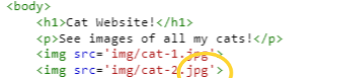
One of the images on the cat website is broken - fix it, and the image will reveal the hidden text answer!
The problem here was that the file format was not specified like the first image scripted.
The image should be rendered and the text wil be revealed in the image.
Click to see Answer
HTMLHERO
Question
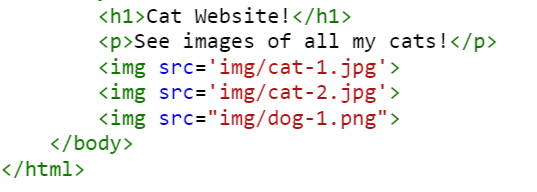
Add a dog image to the page by adding another img tag () on line 11. The dog image location is img/dog-1.png. What is the text in the dog image?
All you have to do this time is create source path and saying its location is img/dog-1.png as shown as below. If done correctly the image will be shown as previously and will show text
Click to see Answer
DOGHTML###Task 3 - JavaScript###
JavaScript (JS) is like the magic that makes websites interactive and dynamic. While HTML gives structure and content to a webpage (like text, images, and buttons), JavaScript is what allows the page to do things when you interact with it, like changing a button color when you click it or showing a pop-up.
JavaScript is a programming language that lets you make web pages interactive. You can write JavaScript directly in the HTML code of a page inside
For example, if you want to change something on your web page using JavaScript, like the text of a specific section, you can use this code:
document.getElementById("demo").innerHTML = "Hack the Planet";
This code looks for an element in the HTML with the id of “demo” and changes its content to say “Hack the Planet.”
You can also make web pages respond to user actions like clicking a button or hovering over something. These actions are called “events.” For example, if you want a button to change the text to “Button Clicked” when someone clicks it, you can do this:
<button onclick='document.getElementById("demo").innerHTML = "Button Clicked";'>Click Me!</button>
This is what it should look like!
In this case, the onclick event is added directly to the button. When you click the button, the JavaScript code runs and updates the text of the element with the “demo” ID.
Alternatively, you can keep the onclick event inside a separate script instead of attaching it directly to the button, keeping your HTML cleaner. Basically the there is no change on the user’s end. The only difference is that the JavaScript for the button is written outside the element/tag so that it appears neater on the developers side.
Question
Click the “View Site” button on this task. On the right-hand side, add JavaScript that changes the demo element’s content to “Hack the Planet”
To solve this we set the ID demo to show hack the planet using the following code: document.getElementById(“demo”).innerHTML = “Hack the Planet”;


Click to see Answer
JSISFUN
Question
Add the button HTML from this task that changes the element’s text to “Button Clicked” on the editor on the right, update the code by clicking the “Render HTML+JS Code” button and then click the button.
To solve this the on click events should be made outside the demo ID script because it was made to change “hi there” to “hack” the planet so the button can be created.

Sensitve Data Exposure
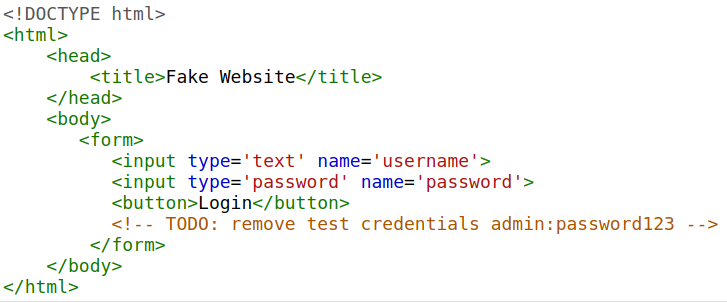
Sensitive Data Exposure happens when a website accidentally shows sensitive information, like passwords, in its code where it’s easy to find. This often occurs when developers forget to remove things like login credentials, secret links, or other private details from the front-end code of the website. Since this code is accessible to anyone just by right-clicking on the page and selecting “View Page Source,” it means anyone with basic knowledge could find and misuse this information.
For instance, a developer might leave a comment in the code with temporary login information they used for testing, thinking no one would look. But if an attacker finds this information, they could potentially log in or gain access to sensitive areas of the site, causing serious security risks.
So, when checking a website’s security, a good first step is to look through its code to make sure nothing sensitive has been left behind that could be used to break in.
If you look at the code, you can see the comment starting and ending with <!– > has the username details
Username: “admin” Password: Answer
Question View the website on this link. What is the password hidden in the source code?
Click to see Answer
password123Task 5 - HTML injection
HTML Injection is a security problem where a website displays text that users type in without checking it first for dangerous content. If a website doesn’t filter or “sanitize” the information a user inputs, it’s possible for someone to sneak harmful code into the website.
Imagine there’s a comment box where users can type a message. If a site doesn’t properly filter that input, an attacker could submit not just a normal message but HTML code (the code that helps create the website) or even JavaScript (which can run commands in the browser). When this code appears on the page, it could look different or even behave unexpectedly, like showing fake login forms or running scripts, which could trick other users into sharing sensitive information.
In short, without filtering or controlling what users type in, a site risks letting attackers mess with how it looks and behaves, which could harm other users.
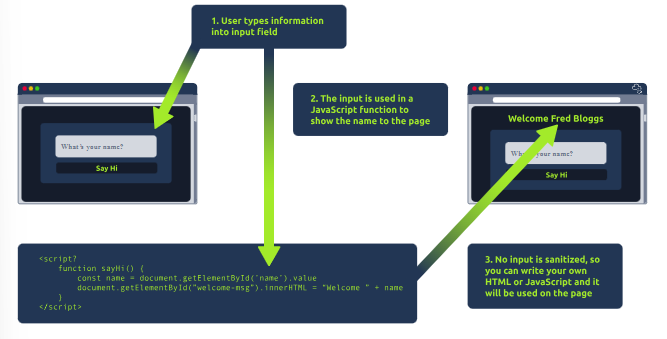
The image shows a form where a user types their name, and the page says hello back to them using what they typed. But there’s a risk here: if the user enters something tricky—like extra HTML or JavaScript instead of just their name—the form will display this extra code as if it were part of the website. So, the user can sneak in code that changes the page’s appearance or behavior.
The solution? Always be cautious with what users type in. Before using anything they enter in functions like “sayHi,” the developer should clean it up (sanitize it) to strip out any HTML tags or harmful code. This helps ensure that only safe content gets displayed on the page.
Question
View the website on this task and inject HTML so that a malicious link to http://hacker.com is shown.
This can be solved using this code:
<a href="http://hacker.com">Click here to visit hacker.com</a>
<a>: This is the opening tag for an anchor element in HTML. Anchor elements are used to create hyperlinks, which allow users to click on them to navigate to another webpage.
href=”http://hacker.com”:
href: This attribute specifies the URL (link) that the anchor element points to.
"http://hacker.com"`: This is the actual link that will be opened when a user clicks on the text inside the anchor element.
Click here to visit hacker.com: This is the visible text that users see on the webpage. When rendered by the browser, this text will be clickable, leading users to the URL specified in the href attribute.
</a>: This is the closing tag for the anchor element. It indicates the end of the hyperlink.
Click to see Answer
HTML_INJ3CTI0NSee you in the next room…