HTTP in Detail
Task 1 - What is HTTPS(S)
HTTP (Hypertext Transfer Protocol) is the standard protocol for viewing and interacting with web pages. However, it is not secure, meaning that the data transmitted between the user’s browser and the website server is not encrypted. This can make the data vulnerable to interception by third parties (such as hackers).
HTTPS (Hypertext Transfer Protocol Secure) is the secure version of HTTP. It uses encryption (usually via SSL/TLS) to protect the data being transmitted between the user’s browser and the server. This encryption ensures that third parties cannot easily intercept or view the data.
Question
What does HTTP stand for?
Click to see Answer
Hypertext Transfer Protocol
Question
What does the S in HTTPS stand for?
Click to see Answer
Secure
Question
On the mock webpage on the right there is an issue, once you’ve found it, click on it. What is the challenge flag?
If you go on the site you see a cancelled padlock indicating its not secure. Click on it
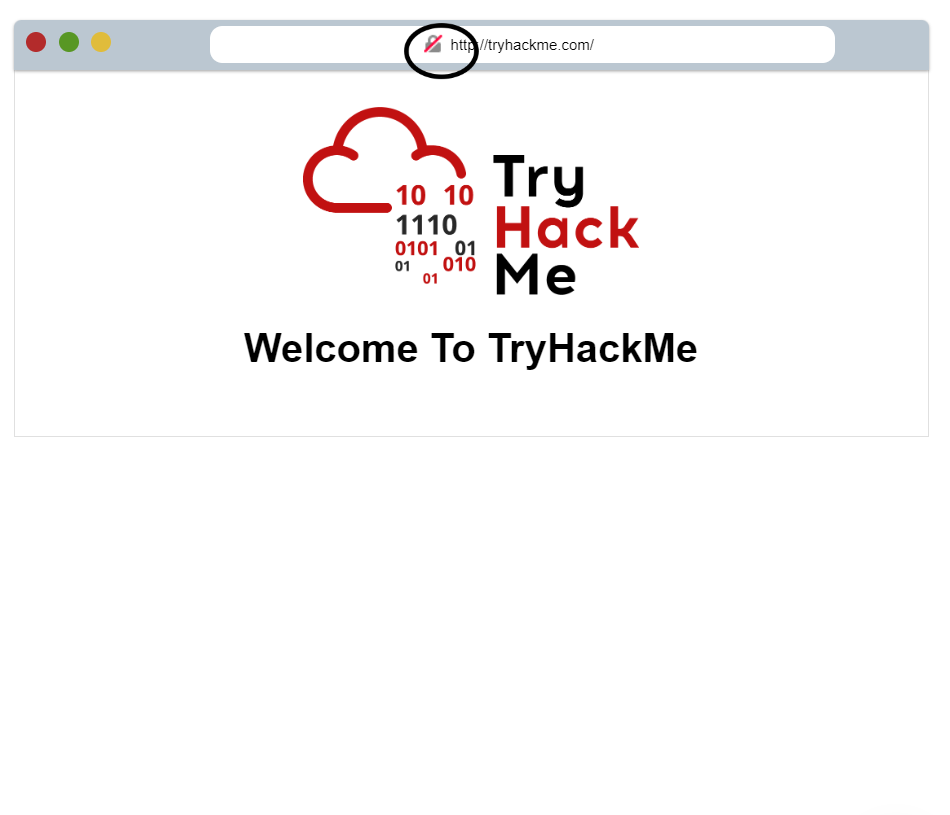
Click to see Answer
THM{INVALID_HTTP_CERT}Task 2- Requests And Responses

A URL (Uniform Resource Locator) is like the address you type into your browser to go to a specific webpage or resource on the internet. It tells your computer where to find what you’re looking for and how to get there.
Let’s break it down:
Scheme (http): This tells your browser what method to use to get the data, like HTTP (for regular websites) or HTTPS (for secure websites).
User (user): Sometimes, if a website requires you to log in, you can include your username and password in the URL (though this is rare and not very secure).
Host (tryhackme.com): This is the website’s address, like “www.google.com.”
Port (80): Think of a port like a specific door on the website’s server that your browser knocks on. Usually, for websites, the common ports are 80 for HTTP and 443 for HTTPS.
Path (/view-room): This is like a folder or page on the website you want to access. Query String (?id=1): This is extra info sent to the website to get specific data. For example, it might tell a blog to show the post with ID number 1.
Fragment (#task3): This is like jumping to a specific section of a page, making it so you start at a certain part when the page loads. GET / HTTP/1.1:
This is the browser asking for the homepage (represented by “/”). “GET” is the method used to request the page.
“HTTP/1.1” is the version of the protocol the browser is using to communicate with the server. Host: tryhackme.com:
This tells the server that we are trying to access the website “tryhackme.com.” User-Agent: Mozilla/5.0 Firefox/87.0:
This informs the server that the request is coming from the Firefox browser, version 87.
Referer: https://tryhackme.com:This tells the server that we came from another page on the same website, “https://tryhackme.com.”
Blank Line: Every HTTP request ends with a blank line to indicate that the request has been completed. In short, the request is asking the server for the homepage of “tryhackme.com,” while also providing details about the browser used and the previous page visited. In simple terms, the URL is the address that helps guide you to exactly what you want to see on the internet.
Making a request
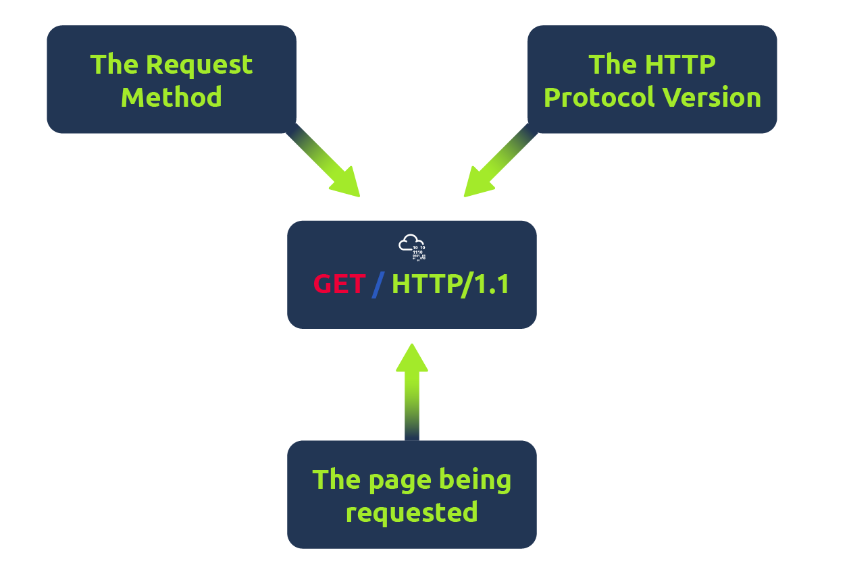
Example Request:
GET / HTTP/1.1
Host: tryhackme.com
User-Agent: Mozilla/5.0 Firefox/87.0
Referrer: https://tryhackme.com/
Line 1 (GET / HTTP/1.1): This is saying, “I want to view the home page of this website.” The “GET” is the action (just looking), the / refers to the home page, and “HTTP/1.1” is the version of the communication method used (like a language version).
Line 2 (Host: tryhackme.com): This tells the server which website you want to access, in this case, “tryhackme.com.”
Line 3 (User-Agent: Mozilla/5.0 Firefox/87.0): This tells the server what browser you are using—here, it’s Firefox version 87. The server uses this info to give you a version of the site that works well with your browser.
Line 4 (Referer: https://tryhackme.com/): This lets the server know what website you were on before making this request, which in this case is also “tryhackme.com.” It’s like saying, “I clicked a link from this page.”
Line 5 (Blank Line): This empty line is like saying, “That’s all for my request!” It signals to the server that the request is complete and ready for a response.
Example Response:
HTTP/1.1 200 OK
Server: nginx/1.15.8
Date: Fri, 09 Apr 2021 13:34:03 GMT<br>
Content-Type: text/html
Content-Length: 98

<html>
<head>
    <title>TryHackMe</title>
</head>
<body>
    Welcome To TryHackMe.com
</body>
</html>
Line 1 (HTTP 1.1 200 OK): This tells you the server is using HTTP version 1.1 to talk back to your browser. The “200 OK” means the request was successful—like saying, “Everything worked!”
Line 2 (Server Info): This is the server telling you what software and version it’s using. It’s like saying, “I’m running on this software version.”
Line 3 (Date and Time): This tells you the exact date and time when the server sent this response. It helps both sides track when the communication happened.
Line 4 (Content-Type): This tells your browser what kind of content it’s about to receive, like saying, “I’m sending you a webpage” or “I’m sending you an image.”
Line 5 (Content-Length): This is the server letting you know how big the response is. It’s like saying, “The response is this many bytes long” to make sure everything gets sent correctly.
Line 6 (Blank Line): Just like in the request, this blank line is the server’s way of saying, “That’s it, I’m done!” The response is complete.
Lines 7-14 (Requested Data): These lines contain the actual content you requested, like the homepage of the site. This is where the server delivers what you asked for, whether it’s a webpage, an image, or some other file.
Question
What HTTP protocol is being used in the above example?
Click to see Answer
HTTP/1.1
Question What response header tells the browser how much data to expect?
Click to see Answer
201Task 3- HTTP Methods
HTTP methods are like instructions that tell a web server what you want to do with the data.
GET: You are asking the server for some information, like asking a librarian for a book. You just want to see it but not change anything.
POST: You are sending new information to the server, like filling out a form and submitting it. This might create something new, like a new user account.
PUT: You are updating something that already exists on the server, like correcting a typo in your online profile.
DELETE: You are telling the server to remove something, like asking to delete an old account or a file you don’t need anymore.
Question
What method would be used to create a new user account?
Click to see Answer
POST
Question
What method would be used to update your email address?
Click to see Answer
PUT
Question
What method would be used to remove a picture you’ve uploaded to your account?
Click to see Answer
PUT
Question
What method would be used to remove a picture you’ve uploaded to your account?
Click to see Answer
PUT
Question
What method would be used to remove a picture you’ve uploaded to your account?
Click to see Answer
DELETE
Question
What method would be used to view a news article?
Click to see Answer
GET
Task 4 - HTTP status codes
HTTP status codes are numbers that a website sends back to your browser to let you know what happened when you made a request (like when you visit a webpage). These codes are divided into five categories, and here’s a simple breakdown of what they mean:
Categories: 100-199 (Information Responses): This means the server got the first part of your request and is telling you to keep sending the rest of it. These aren’t used very often anymore.
200-299 (Success): Your request was successful! Everything went fine.
300-399 (Redirection): The server is telling you to look somewhere else. It’s redirecting you to another webpage or site.
400-499 (Client Errors): Something went wrong with your request (like missing information or trying to access a page you’re not allowed to see).
500-599 (Server Errors): Something is wrong on the server’s side, meaning the website had trouble handling your request.
Common HTTP Status Codes: 200 OK: Everything worked perfectly. The page loaded as expected.
201 Created: Something was successfully created, like a new user account or blog post.
301 Moved Permanently: The page you’re looking for has been moved somewhere else, and this change is permanent.
302 Found: The page is temporarily located somewhere else for now, but it might move again.
400 Bad Request: There was a mistake in your request, like missing information or wrong formatting.
401 Not Authorized: You need to log in (with a username and password) to access this page.
403 Forbidden: You’re not allowed to access this page, even if you’re logged in.
404 Page Not Found: The page you’re looking for doesn’t exist.
405 Method Not Allowed: You’re using the wrong method for the request (like trying to open a form with the wrong command).
500 Internal Service Error: The server ran into a problem it can’t figure out.
503 Service Unavailable: The server is either too busy or undergoing maintenance, so it can’t handle your request right now.
These codes help you understand what’s happening when you visit a webpage or interact with an online service
Question
What response code might you receive if you’ve created a new user or blog post article?
Click to see Answer
Offensive Security
Question
What response code might you receive if you’ve tried to access a page that doesn’t exist?
Click to see Answer
201
Question
What response code might you receive if you’ve tried to access a page that doesn’t exist?
Click to see Answer
404
Question
What response code might you receive if the web server cannot access its database and the application crashes?
Click to see Answer
503
Question
What response code might you receive if the web server cannot access its database and the application crashes?
Click to see Answer
401Task 5 - HTTP headers
Headers are extra pieces of information that your browser and a web server send to each other when you load a webpage. These help make sure the page works properly. Here’s a simple breakdown of the two types of headers:
Common Request Headers (sent from your browser to the web server): Host: This tells the server which website you want, especially if the server hosts more than one site. Without it, the server might send you the default site.
User-Agent: This tells the server what browser you’re using (like Chrome, Firefox, etc.) and its version. This helps the website work properly for your browser because not all browsers display content the same way.
Content-Length: If you’re sending data to the server, like when filling out a form, this tells the server how much data you’re sending. The server uses it to make sure it gets all the information.
Accept-Encoding: This tells the server what kinds of compression your browser can handle. Compressing data makes it quicker to send over the internet.
Cookie: This sends information stored in your browser (like login details or preferences) back to the server so it can remember you from a previous visit.
Common Response Headers (sent from the web server to your browser): Set-Cookie: The server tells your browser to store some information, like login status or user preferences, so it can remember you the next time you visit.
Cache-Control: This tells your browser how long it can store a webpage (in its memory) before needing to check the server for updates. This makes future visits to the page faster.
Content-Type: This tells your browser what type of file is being sent, like an HTML webpage, an image, or a PDF. Knowing the type helps the browser display the content correctly.
Content-Encoding: This shows what method was used to compress the data, so your browser knows how to decompress and display it properly.
Headers help smooth communication between your browser and the web server, making sure the right website is loaded, displayed correctly, and remembers your preferences.
Question
What header tells the web server what browser is being used?
Click to see Answer
User-Agent
Question
What header tells the browser what type of data is being returned?
Click to see Answer
Content-Type
Question
What header tells the web server which website is being requested?
Click to see Answer
HostTask 6 - HTTP cookies
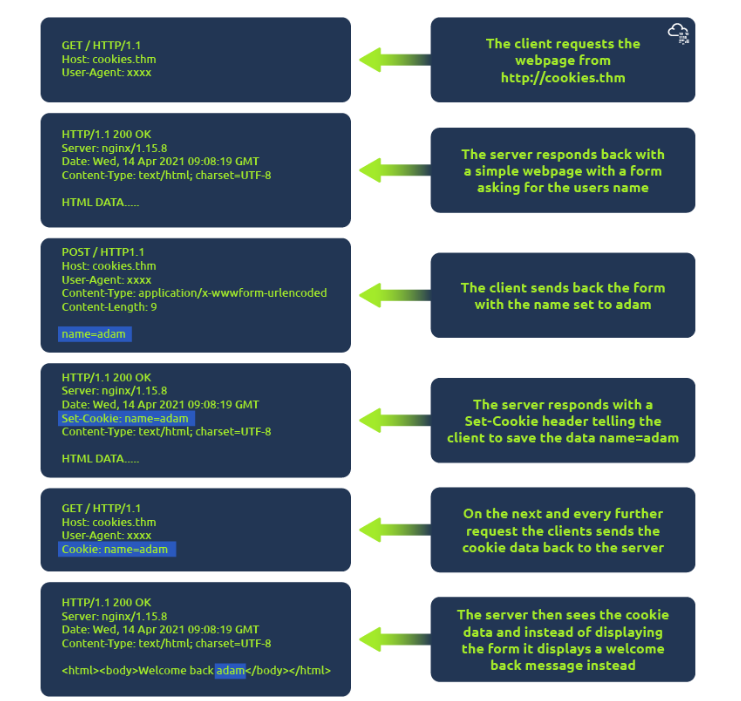
What Are Cookies in Web Browsing?
You’ve probably come across the term cookies when browsing the web. In simple terms, cookies are small bits of data that are stored on your computer by websites you visit. They help websites “remember” who you are and personalize your experience.
How Do Cookies Work? When you visit a website, the server sends a special header called Set-Cookie to your browser. This stores a cookie on your device. From that moment on, every time you make another request to the same website (like clicking a link or visiting a new page), your browser sends that cookie back to the server. Since the internet uses HTTP, which is “stateless” (meaning it doesn’t remember your previous visits), cookies help the website recall your preferences or recognize you as a returning user.
Common Uses of Cookies One of the most common uses of cookies is for authentication. When you log in to a website, instead of constantly asking for your username and password every time you visit a new page, the website uses cookies to keep you logged in. The cookie usually contains a token, which is a unique, hard-to-guess code that identifies you securely without storing sensitive data like your password in plain text.
How to View Cookies in Your Browser If you want to see what cookies are being sent between your browser and a website, you can use the developer tools built into your browser. Here’s how:
Open Developer Tools: You can access this by right-clicking on the page and selecting “Inspect” or by pressing F12. Go to the “Network” Tab: This shows all the resources that your browser requests from the website. Check the “Cookies” Tab: For each resource, click on it to view details. If your browser sent a cookie, it will appear in the “Cookies” section of the request. This will give you a behind-the-scenes look at how cookies are working to keep track of your interactions with the website.
Final Thoughts Cookies are a crucial part of how modern websites function, enabling smoother and more personalized experiences. While they can raise privacy concerns, they also help keep you logged in and streamline how you interact with websites on the internet. If you’re curious about how websites use cookies with your data, viewing them in your browser’s developer tools can be a helpful way to explore what’s happening under the hood.
Question
Which header is used to save cookies to your computer?
Click to see Answer
Set-Cookie
Task 7- HTTP making requests
Question Make a GET request to /room
To solve this set the request to a GET request from the pNEL
Then we type in the name of the directory/page we’re requesting for,room
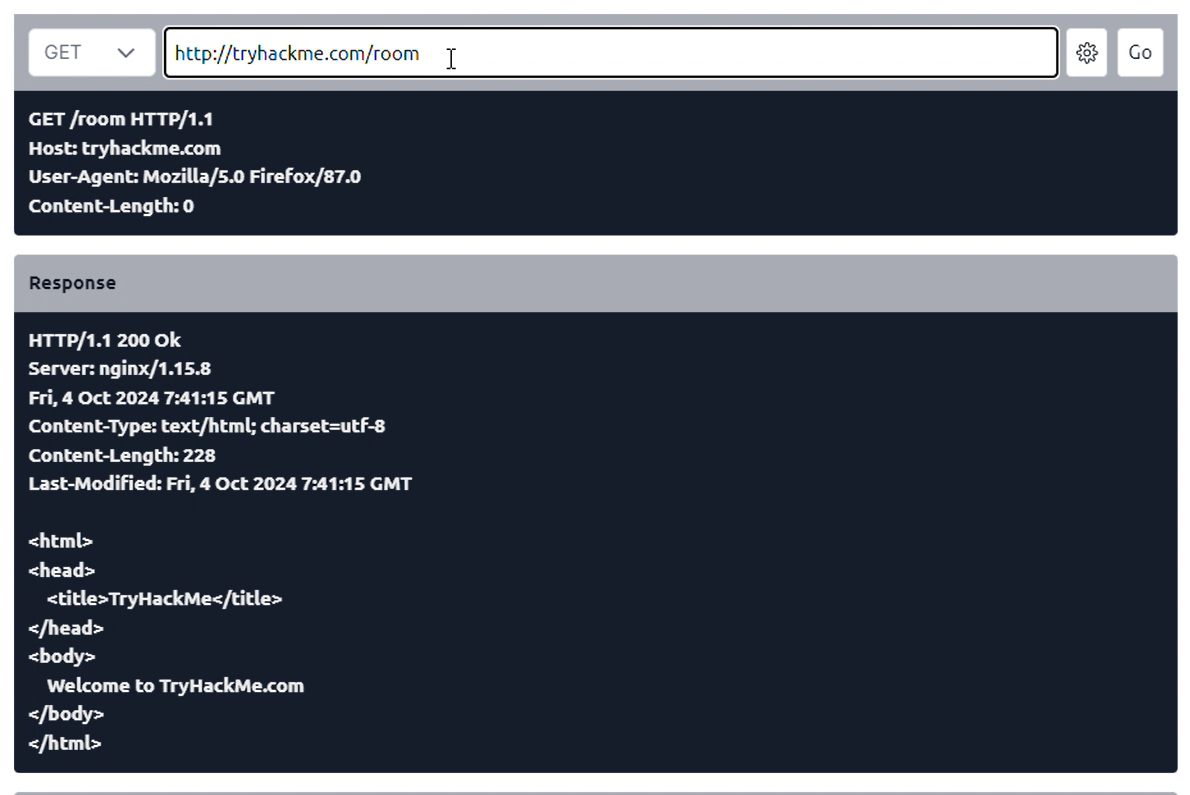
Click to see Answer
THM{YOU'RE_IN_THE_ROOM}
Question
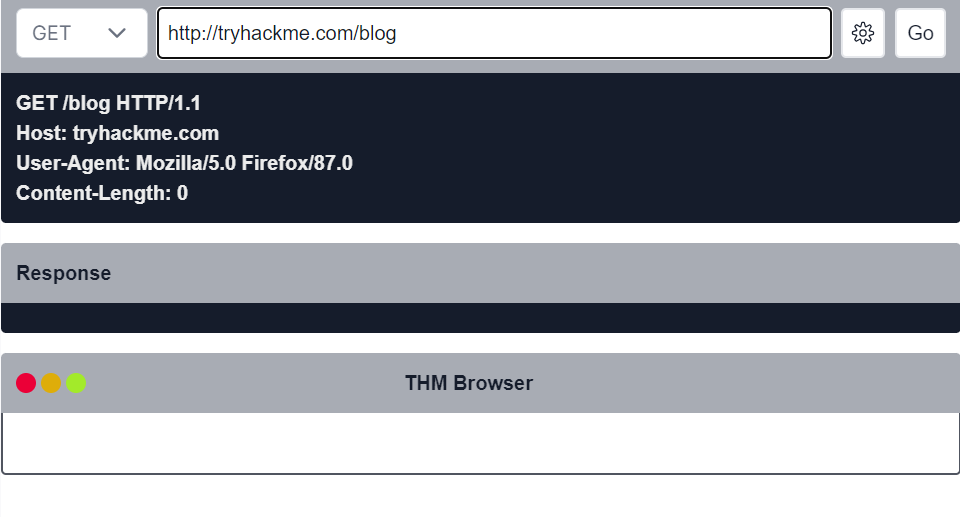
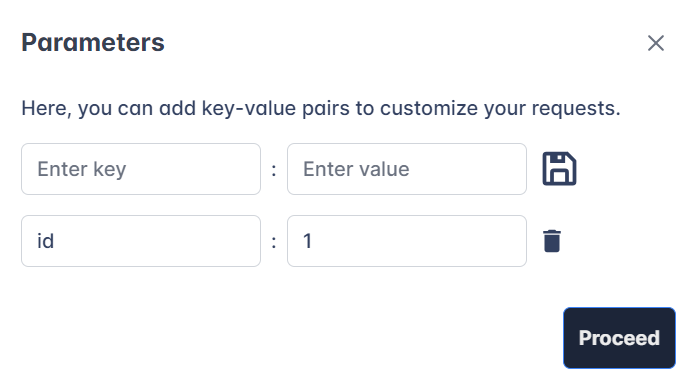
Make a GET request to /blog and using the gear icon set the id parameter to 1 in the URL field
To solve this set the request to GET from the panel and the directory to /blog
Next we set the parameter to id and the value to 1
Click to see Answer
THM{YOU_FOUND_THE_BLOG}
Question
Make a DELETE request to /user/1
To solve this we make a PUT request from the panel and type the /user/1 directory to make a request

Click to see Answer
THM{USER_IS_DELETED}
Question
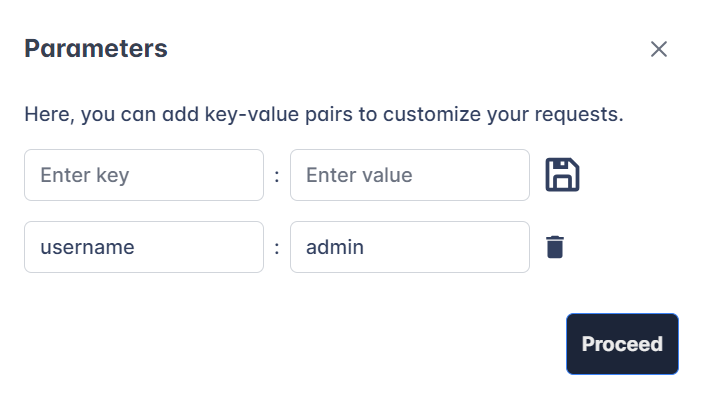
Make a PUT request to /user/2 with the username parameter set to admin
To solve this we have to change the request to a PUT request
Then we set request to /user/2
Then we se the parameter to username and the value to admin
Click to see Answer
THM{USER_HAS_UPDATED}Question
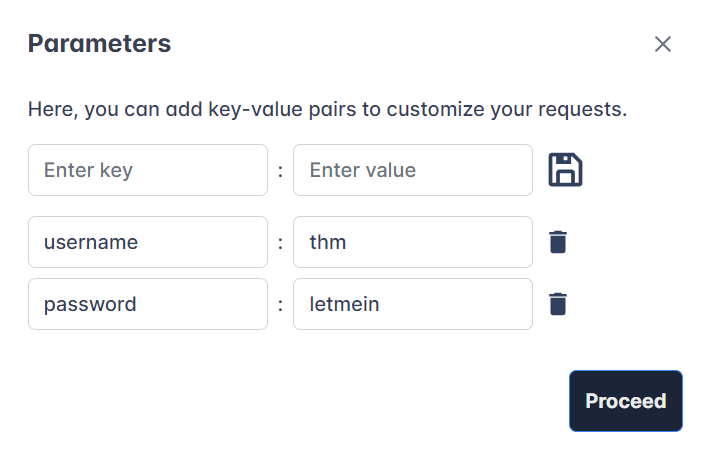
POST the username of thm and a password of letmein to /login
To solve this we set the request to a POST then type in the directory we are looking for
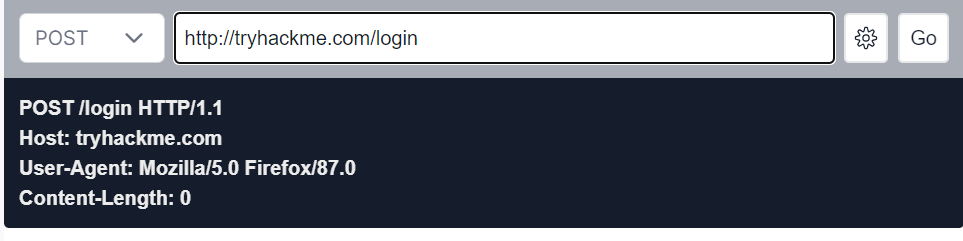
Then we set the 2 parameters. Username to thm and Password to letmein
Click to see Answer
THM{HTTP_REQUEST_MASTER}In summary, understanding HTTP and HTTPS is essential for navigating the web securely and efficiently. This blog covered the basic structure of HTTP requests and responses, explained common methods like GET and POST, and highlighted the importance of status codes and headers. With the added focus on securing communications through HTTPS, you now have a solid foundation for making informed decisions about web interactions.
See you in the next room!